> For the complete documentation index, see [llms.txt](https://docs.gaiodataos.com/llms.txt). Markdown versions of documentation pages are available by appending `.md` to page URLs; this page is available as [Markdown](https://docs.gaiodataos.com/tools/tasks/etl/sql.md).
# SQL
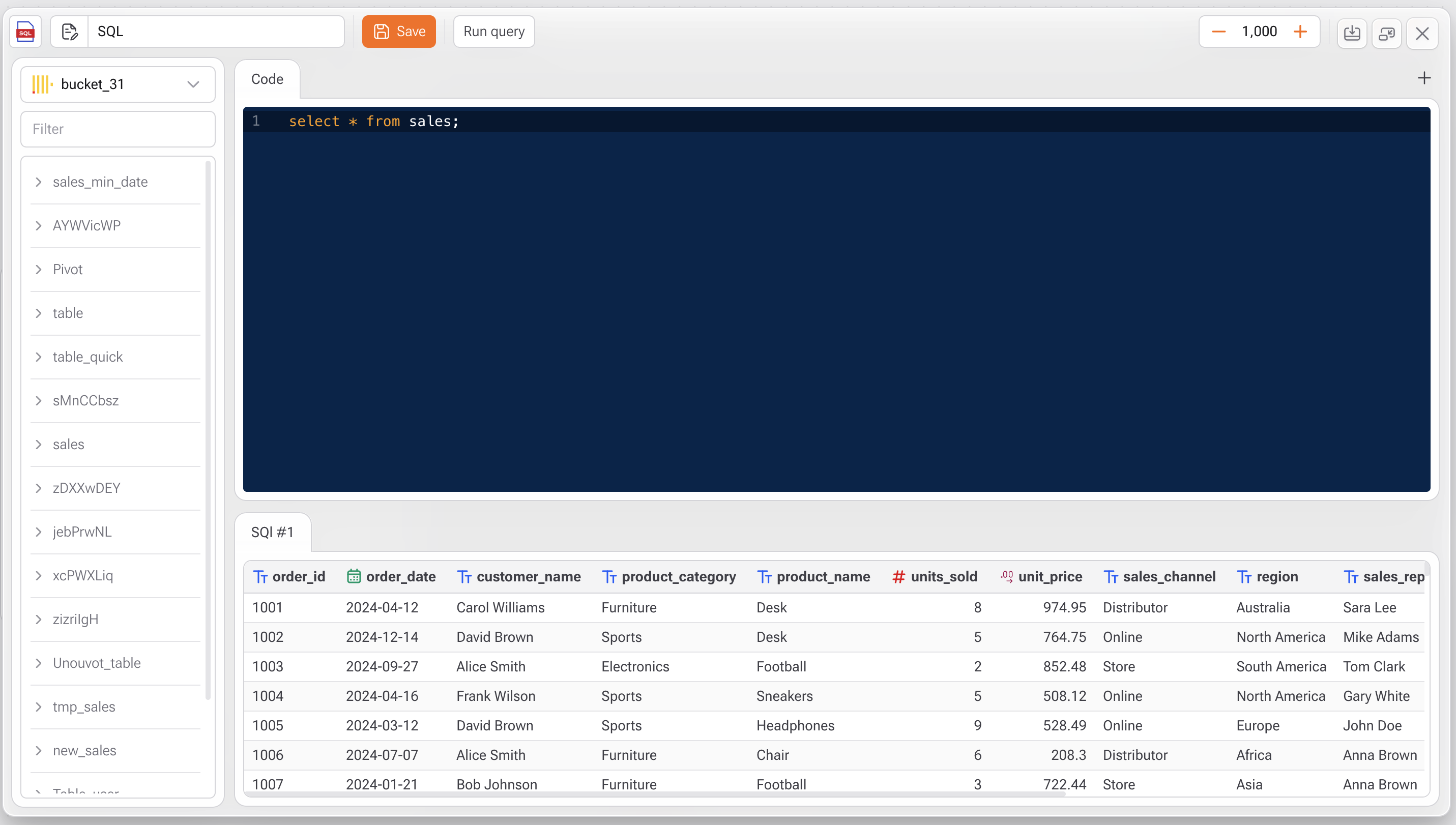
The **SQL Editor** in Gaio DataOS allows users to write, run, and test custom SQL queries directly on tables within the selected project bucket. It's a powerful tool for advanced users who prefer full control over data manipulation using SQL.
***
## How to Use the SQL Editor
***
### 1. **Access the SQL Editor**
* In the **Studio**, open the left-side panel under **Tasks**.
* Select the **SQL** option to open the code editor.
***
### 2. **Select the Bucket**
* At the top left, select the **bucket** that contains the tables you want to query.
* All available tables in that bucket will be listed below for reference.
***
### 3. **Write Your SQL Query**
* In the central editor area, type your SQL query.\
Example:
```sql
SELECT * FROM sales;
```
* The editor supports syntax highlighting for better readability and clarity.
***
### 4. **Run the Query**
* Click **Run query** to execute your SQL.
* The result will appear in a preview panel below the code.
You can paginate the result using the row limit control on the top right (`1,000` by default).
***
### 5. **Save Your Query**
* Click **Save** to store the SQL block as a reusable task or part of a data flow.
***
#### Additional Features
| Feature | Description |
| ------------------------ | -------------------------------------------------------- |
| **Syntax Highlighting** | Enhanced readability with colored keywords. |
| **Result Table Preview** | View output immediately after running your query. |
| **Multiple SQL Blocks** | Add more SQL blocks using the **+** button. |
| **Run Flow Integration** | SQL blocks can be integrated into larger data processes. |
***
#### Best Practices
* Use aliases for column names when working with JOINs.
* Avoid `SELECT *` in production queries — explicitly define your columns.
* Test queries with limited row counts before running on full datasets.