> For the complete documentation index, see [llms.txt](https://docs.gaiodataos.com/llms.txt). Markdown versions of documentation pages are available by appending `.md` to page URLs; this page is available as [Markdown](https://docs.gaiodataos.com/tools/tasks/delivery/report.md).
# Report
This is the second most important task within Gaio. With it, you can build different types of graphs and customize a table with statistics on your data.
It is generally used in **Dashboard**-type processes, as they will be accessed by users who do not have access to the Studio of that application.
{% hint style="info" %}
It is super important to carefully evaluate the construction of the process that will be a dashboard. If many queries are carried out, it can slow down those who access the dashboard. A good practice is to prepare the data in a previous process (which can be automated to update the data) and in this process where reports are inserted, only one query is used, in which filters are applied that will allow the user to filter the data on the dashboard.
{% endhint %}
{% hint style="info" %}
It is not possible to create Reports directly on tables from external sources (e.g.: Oracle, MySQL, SQL Server, etc.). Only in tables that are already in Gaio (red tables).
{% endhint %}
***
## **How to Use**
***
### **1. Access the Report task**
* Add a **Table** to your flow and choose the dataset you want to work with.
* The Report task will only become available once a table is selected.
* In the **Studio**, go to the **Tasks** panel.
* Go to **Delivery > Report** in the task menu.
***
### **2. Configure Basic Info**
* **Task label**: (optional) Add a name for the task to identify it in your flow.
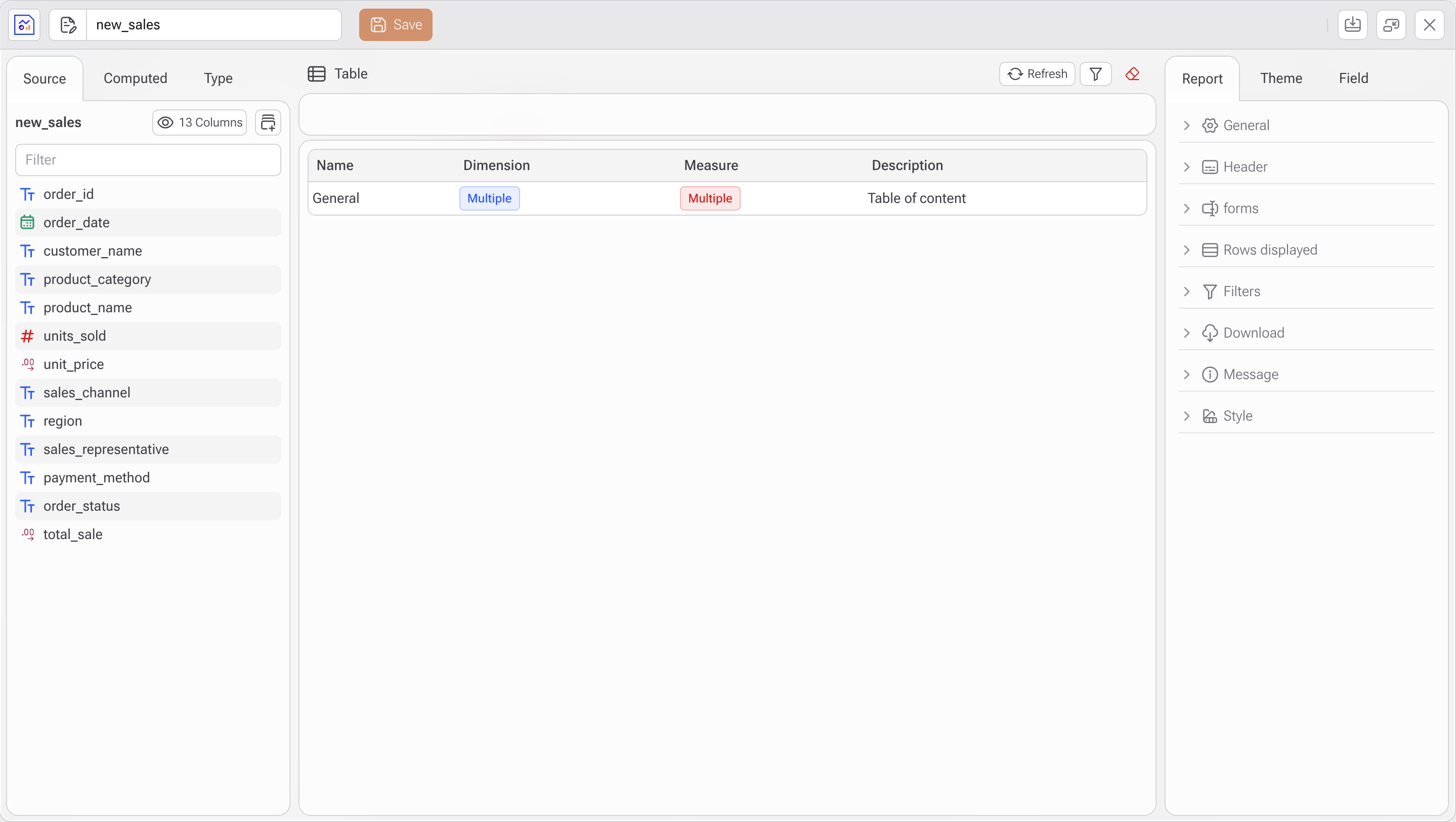
* **Source tab:**
* You will see the available fields in the table.
* Drag the desired fields to use them as **Dimensions** or **Measures**.
* View data in table format before chart creation.
* **Computed tab** to create custom calculated columns.
***
### 3. Define the Visualization Type
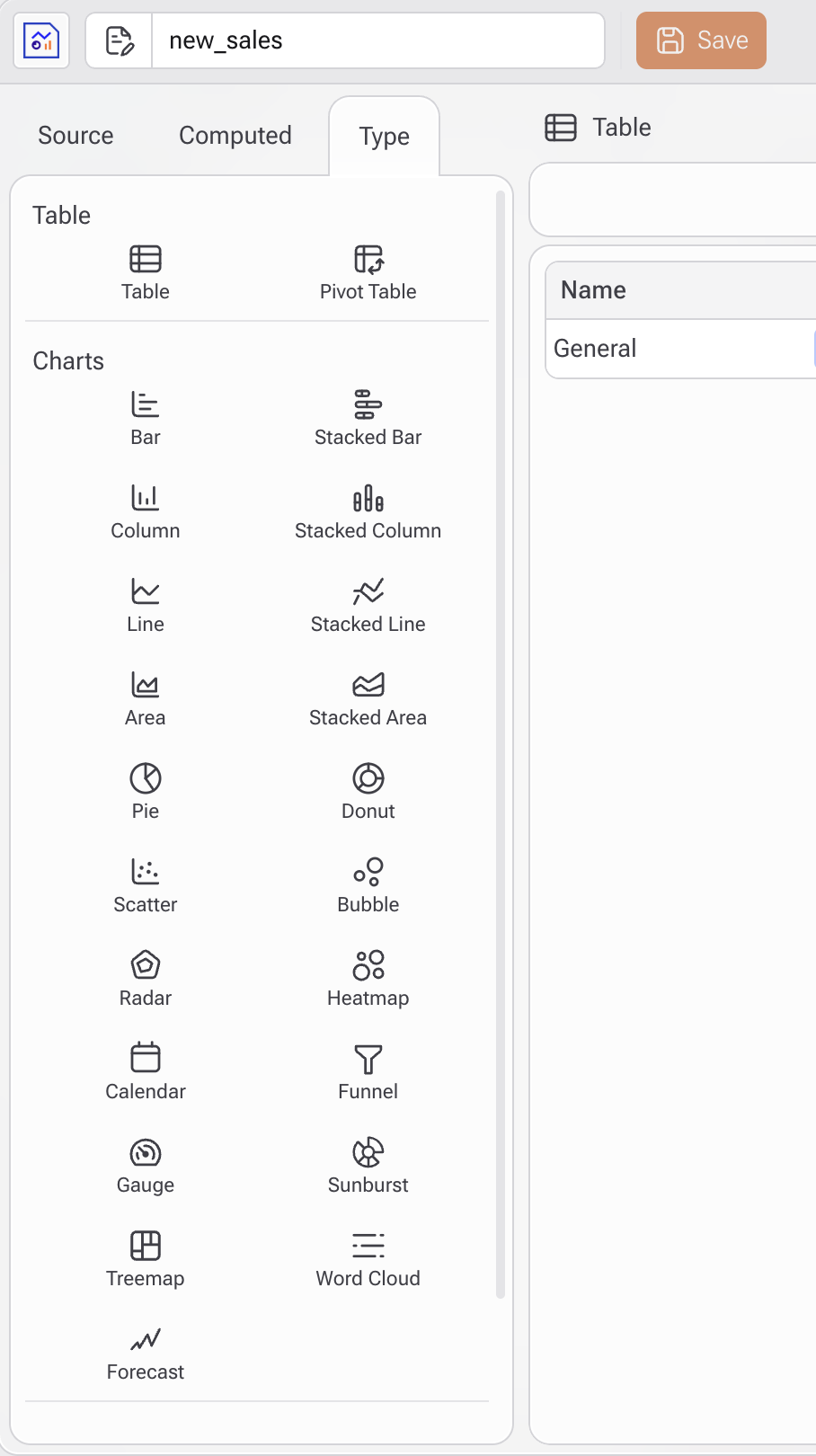
Click on the **Type** tab.
Choose the type of visualization you want to create:
* **Table** or **Pivot Table**
* **Charts**: Column, Line, Area, Pie, Donut, Radar, Heatmap, Word Cloud, and others
* **Forecast**: useful for time series
When you click on the desired type, it will be applied to the current view.
***
### 4. Customize the Report
Use the right-hand panel with the following tabs for customization:
* **Report**: general settings
* **Theme**: visual themes
* **Field**: specific field editing (formatting, labeling, sorting)
***
### 5. Customize Appearance and Behavior
Use the **Report** tab on the right to refine the look and behavior of your visualization. The options vary depending on the selected chart type. For example, if you’re working with a **Stacked Bar**, you can adjust:
* **Header**: Title text and positioning
* **Legend**: Show/hide, placement, and style
* **Label**: Enable or disable value labels on elements
* **Tooltip**: Define what appears on hover
* **X Axis / Y Axis**: Customize labels, rotation, size, visibility
* **Link**: Add interactivity (e.g., open another page on click)
* **Margin**: Set spacing around the chart
* **Rows Displayed**: Limit how many rows are shown
* **Watermark:** Enable watermark in the form of text or an image
* **Message**: Custom message for no-data or loading states
***
### 6. Save and Publish
Once your configuration is complete:
* Click **Save** to store the chart
* Optionally, embed the chart in a dashboard or export it
Your report is now ready to be shared and used for monitoring or presentation.
#### **Tips**
* It is possible to apply filters to the report that will always be used regardless of the user's choice. For example, it is possible to filter the sales of the user who logged in to Gaio (using Parameters). This way he will only see his sales.
* It is possible to place a link in the specific column that will call another process, passing all the values in the row as aparameterso that this process, for example, can filter the data or use it for others.
* In the Report settings, in addition to several other features, it is possible to create a button that opens forms, that is, the user can enter information regarding that line. This feature opens up a wide range of possibilities, where the user can:
* Update that row from the source table
* Delete that line
* Send a message
* Simulate a scenario related to that line
* Among many other possibilities in building the process that will be called from this button
{% hint style="warning" %}
**Hidden columns** In the report, it may be desired to include a Link (will be explained below). All report column values will be passed, however, it may be necessary to pass values for columns that should not be displayed. Therefore, this column will appear in the area at the top, however it will not appear in the table/graph. This hide option is in the menu on the right, which also presents the settings for the selected columns.
{% endhint %}