> For the complete documentation index, see [llms.txt](https://docs.gaiodataos.com/llms.txt). Markdown versions of documentation pages are available by appending `.md` to page URLs; this page is available as [Markdown](https://docs.gaiodataos.com/tools/tasks/etl/run-process.md).
# Run Process
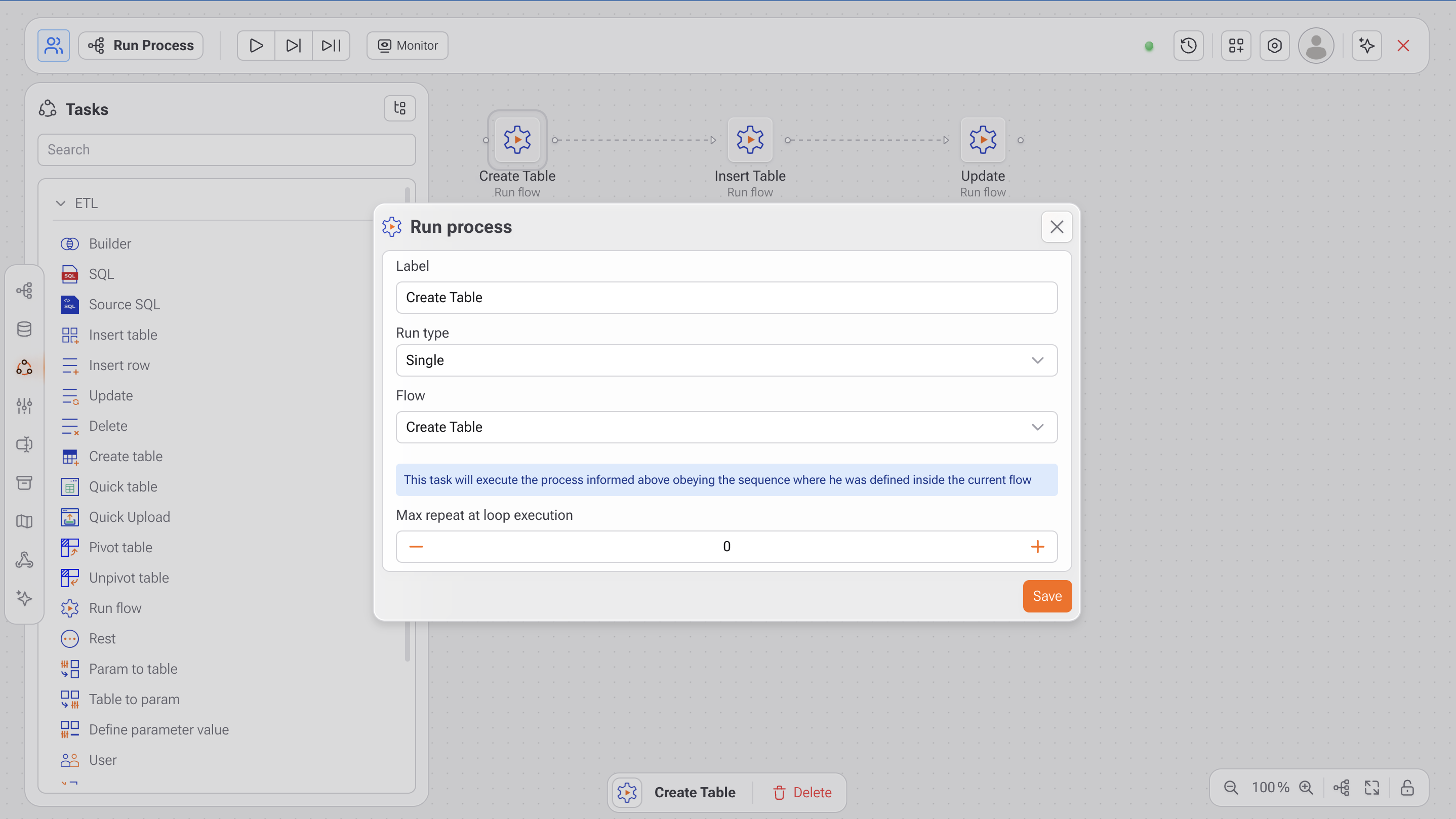
In the middle of a Gaio process, it is possible to call another process. Simply choose **Execute Process from the Tasks menu** and define which process will be executed.
Two applications of this feature are:
1. **Automation of various processes** . A new process can be created where several other processes are called, sequenced and this "macro" process is automated in Scheduling .
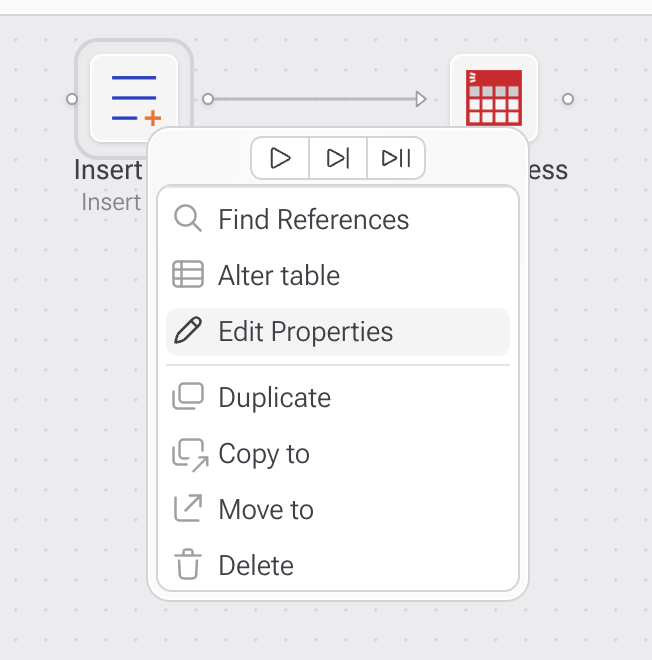
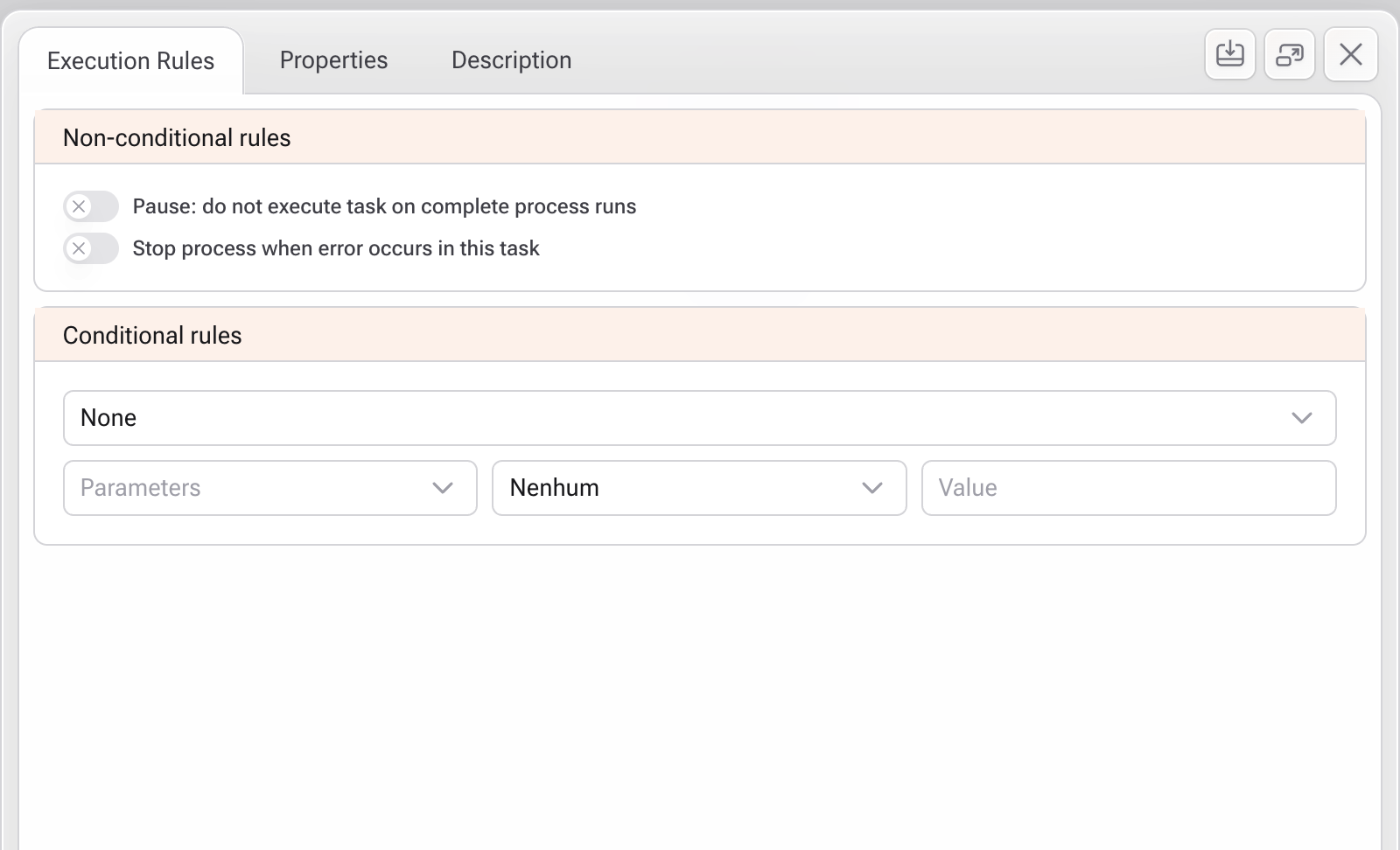
2. **Looping Creation** : Having a process A and another B, the following procedure can be adopted. Process A has a call from process B with the **Execute Process task** . In process B, there is no task other than the **Execute Process** , and process A is called in it. When process A is executed, it will enter an infinite loop. So that the looping is not infinite, the analyst can set any task in the process to a stop criterion, by right-clicking and choosing **Edit properties** .
**Conditional Rules** options , you can choose **Stop execution from this point** . As a criterion for stopping the execution of the entire process, any application **parameter can be used.** This parameter can receive values at each execution of the process, through the [Table for Parameters task](/tools/tasks/etl/table-to-parameters.md) . This way the parameter values are updated and will determine whether the process should stop executing or not.