> For the complete documentation index, see [llms.txt](https://docs.gaiodataos.com/llms.txt). Markdown versions of documentation pages are available by appending `.md` to page URLs; this page is available as [Markdown](https://docs.gaiodataos.com/tools/form.md).
# Form
Forms allow the creation of interactive interfaces for data input or dashboard filtering. They can be used to collect user information, apply filters, or trigger data flows — making them a powerful tool for systematizing analytical processes.
***
### **1. Creating a New Form**
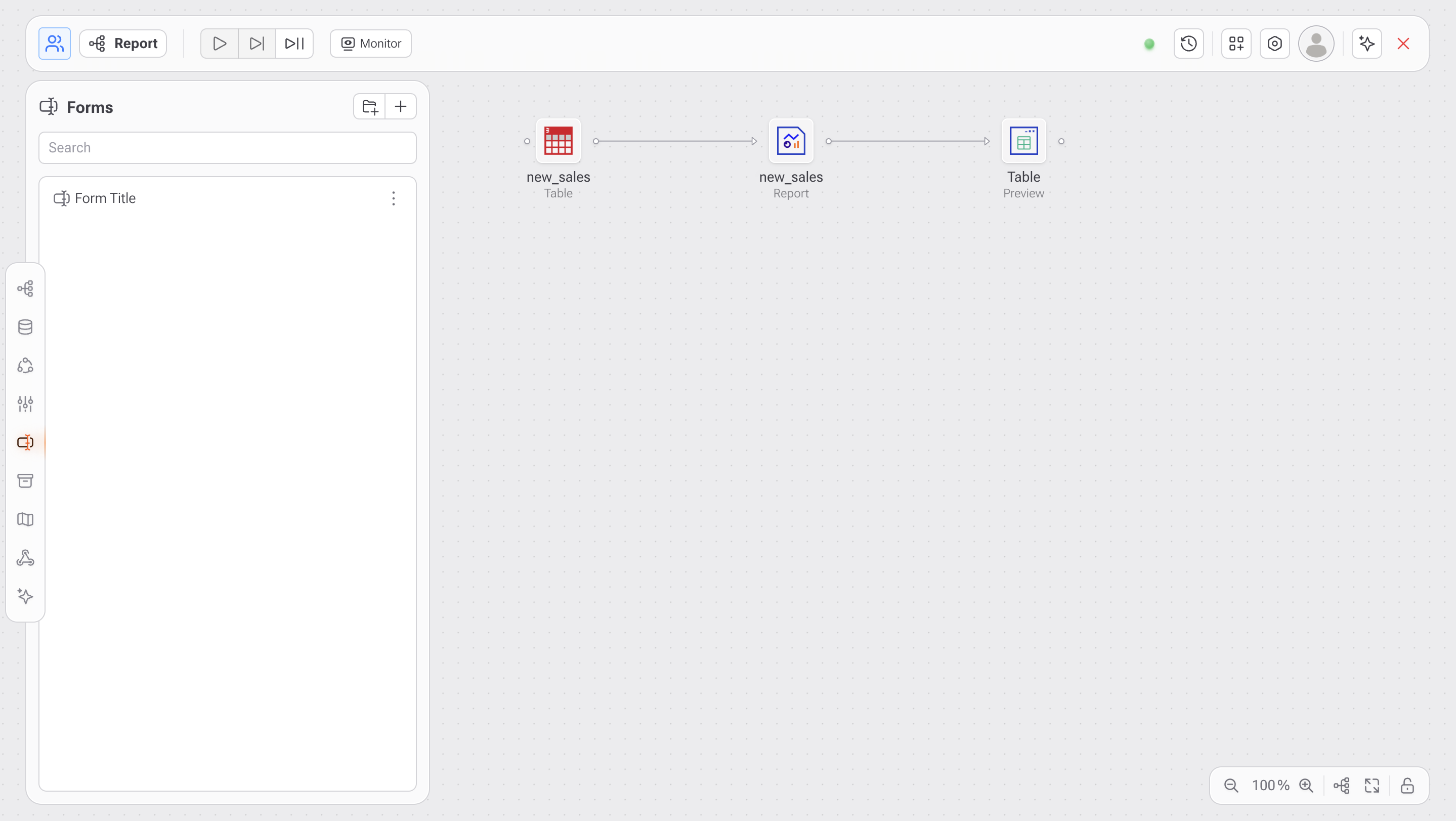
* Go to the **Forms** tab.
* Click the **add form (+)** button.
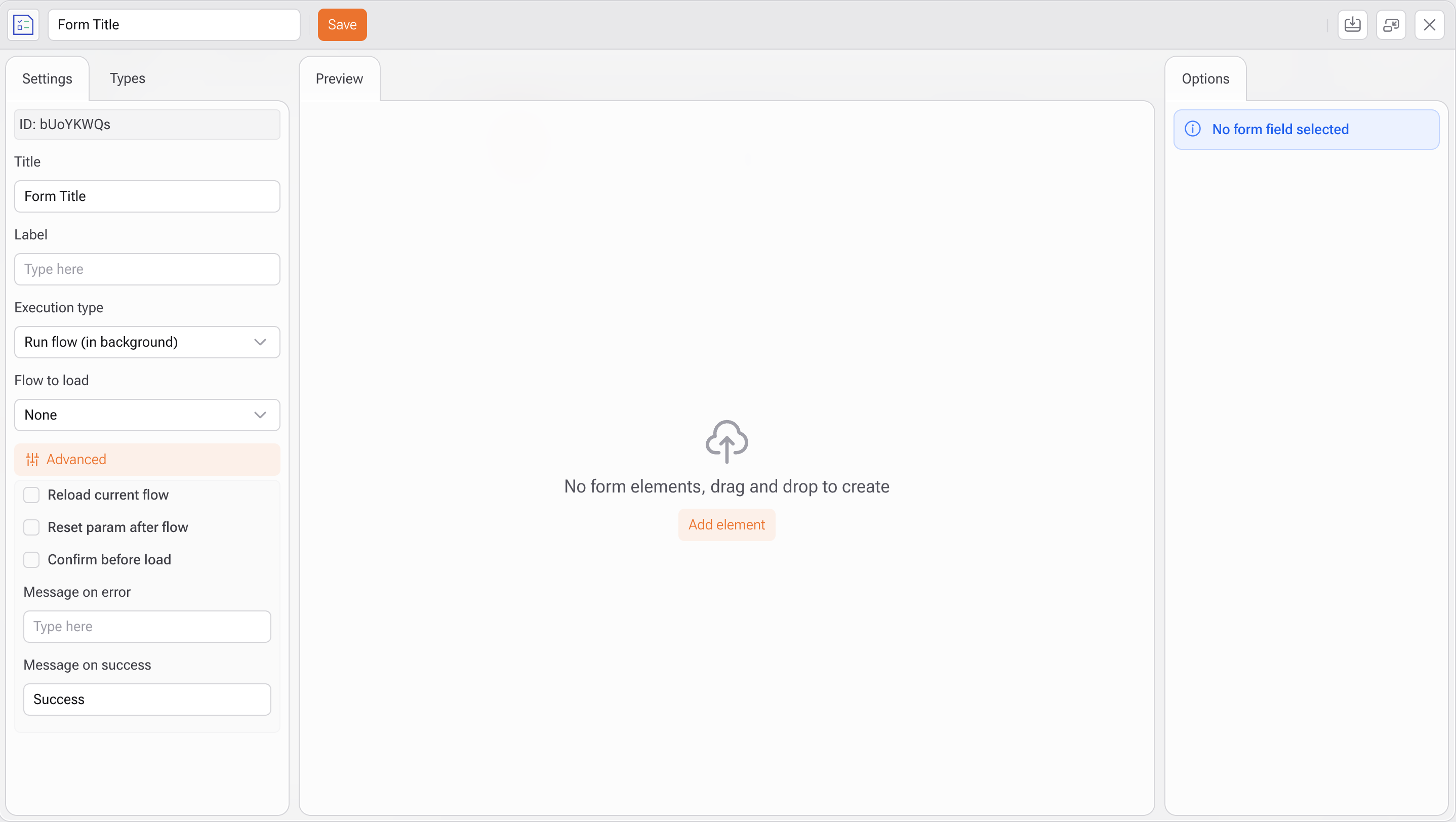
* Set a **Title**, and optionally a **Label** to display on the user interface.
* Choose the **Execution Type**:
* `Open flow`: Opens a new flow interface.
* `Run flow (in background)`: Executes the selected flow without opening it.
* `Refresh current flow`: Refreshes the existing flow after form submission.
* Select the **flow to run** (if you choose option Run flow (in background))
***
### **2. Advanced Settings**
* **Reload current flow**: Reloads the active flow after submission.
* **Reset param after flow**: Resets the form parameters after execution.
* **Confirm before load**: Adds a confirmation step before execution.
* **Custom messages**:
* **On Error**: Message displayed when an error occurs.
* **On Success**: Message shown after successful execution.
***
### **3. Adding Form Fields**
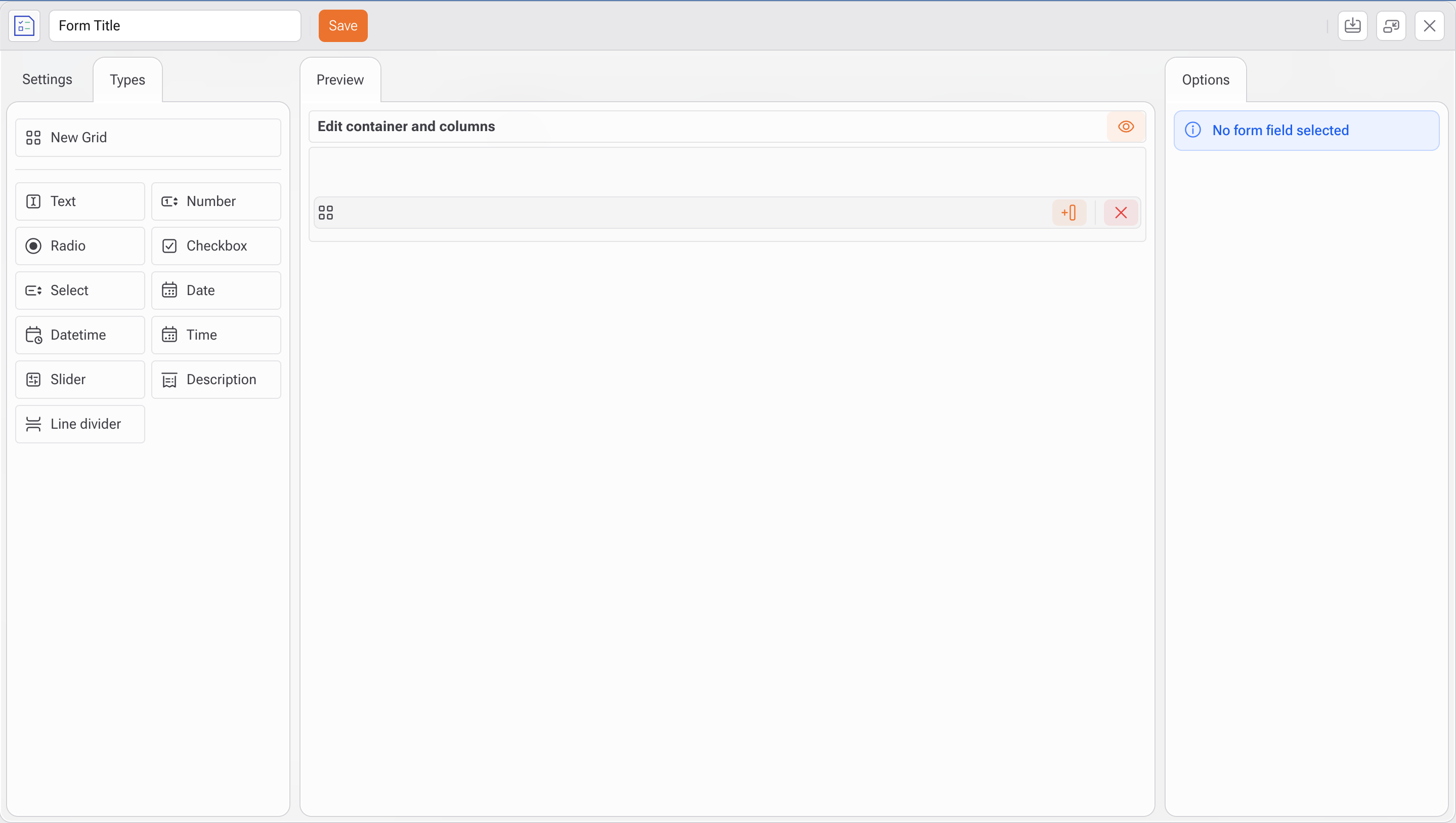
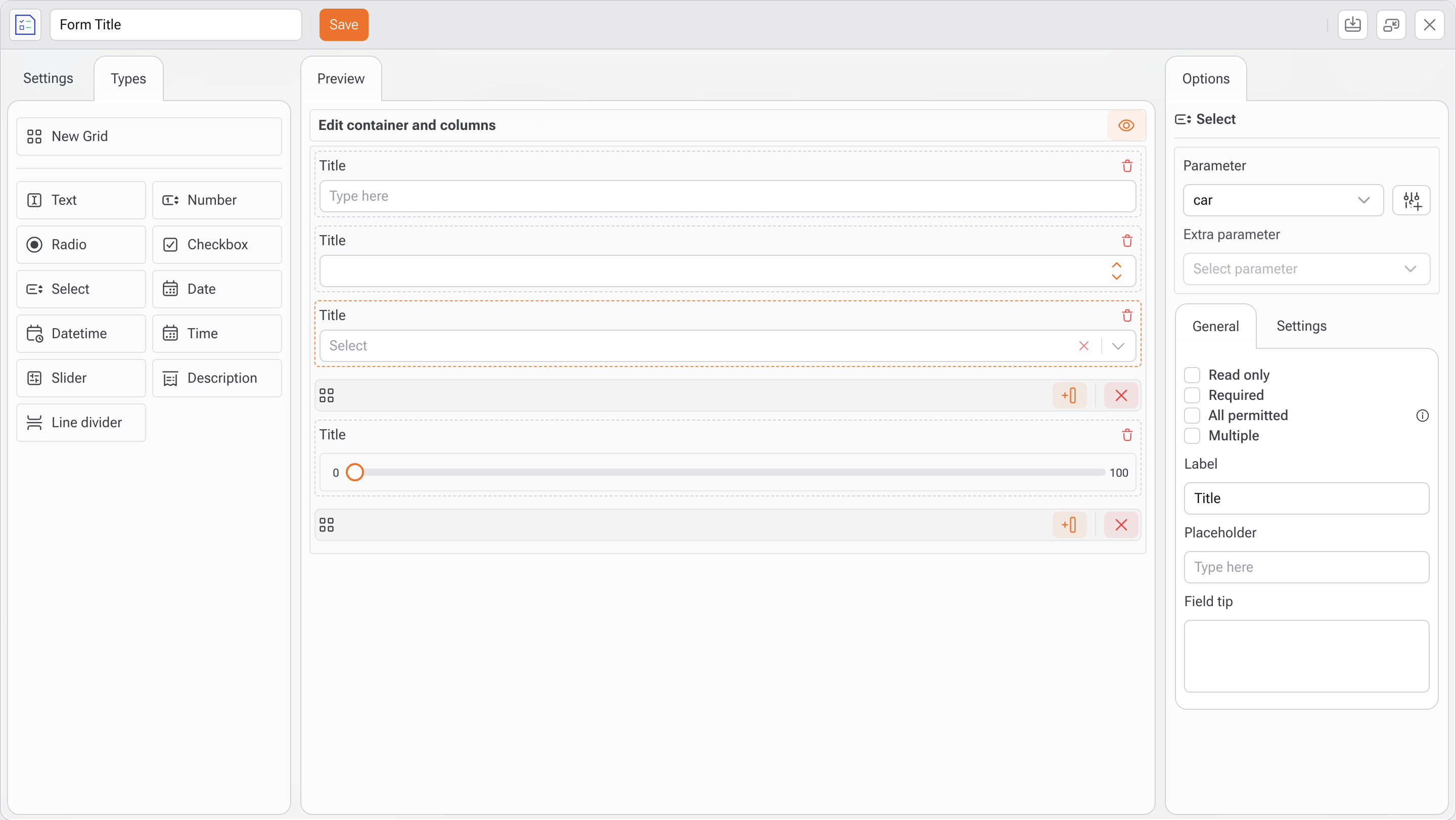
* Go to the **Types** tab and drag the desired form elements:
* Text, Number, Date, Time, Checkbox, Slider, Line divider, etc.
* Organize fields using **grid layouts** for better visual structure.
* Configure each field in the side panel:
* Link the field to a **parameter** (e.g., `car`, `age`, `money`, etc.).
* Adjust settings like: `Read Only`, `Required`, `All Permitted`, `Multiple`.
* Set a **Label**, **Placeholder**, and **Field Tip** to guide the user.
***
### **4. Integration with Data Flows**
Forms can be connected directly to flows that execute SQL, Python, or AutoML steps:
* The **input parameters** from the form are passed as variables into the flow logic.
* This allows you to **dynamically filter data**, **insert records into databases**, or **trigger external APIs** based on user input.
***
#### **Best Practices**
* Use forms to let end users customize dashboards or run simulations.
* Combine field validations (required, multiple selection) to ensure data quality.
* Prefer background execution for heavy processes to keep the interface responsive.