> For the complete documentation index, see [llms.txt](https://docs.gaiodataos.com/llms.txt). Markdown versions of documentation pages are available by appending `.md` to page URLs; this page is available as [Markdown](https://docs.gaiodataos.com/tools/files.md).
# Files
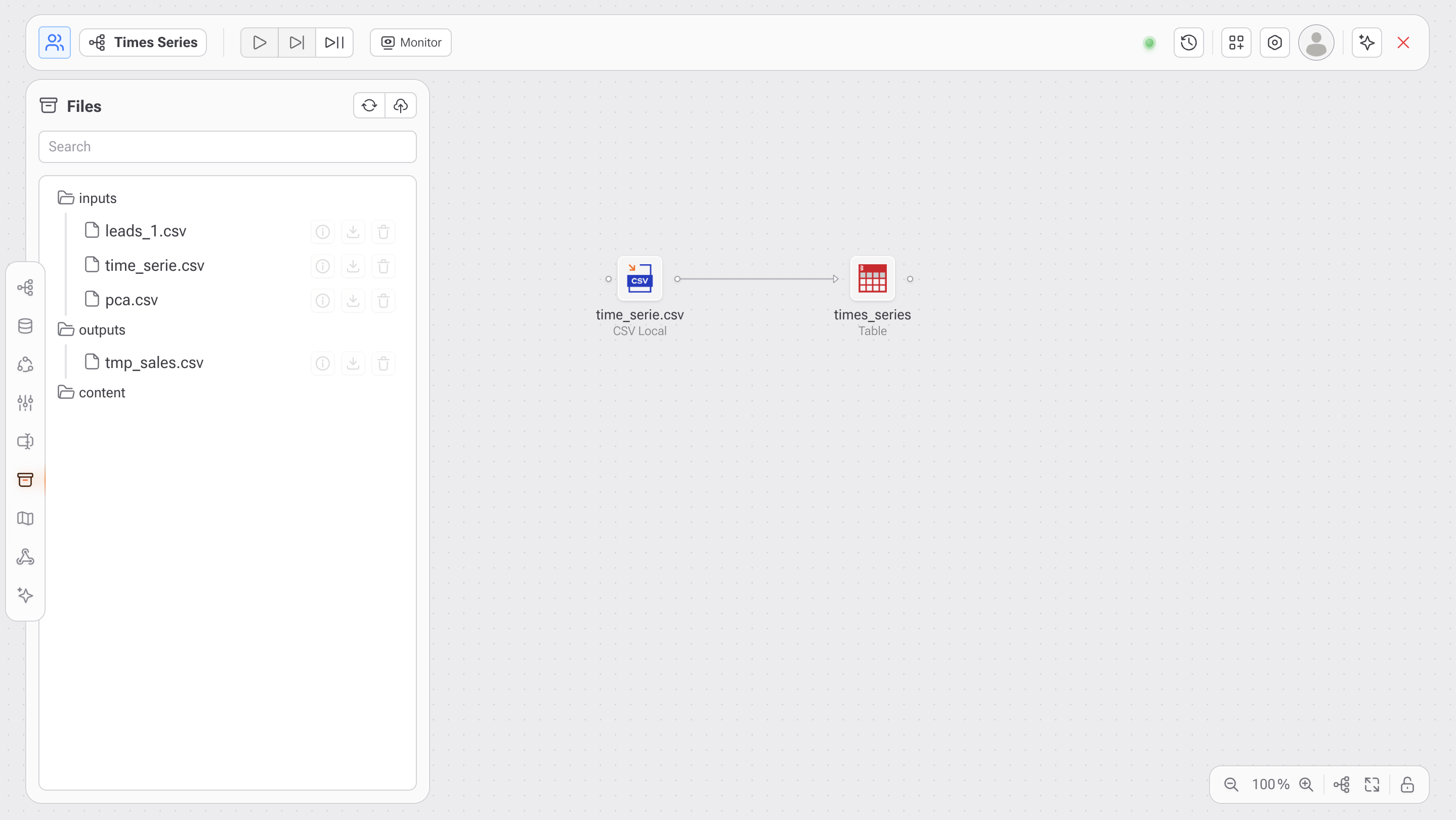
The **Files** panel in Gaio DataOS allows users to upload, organize, and use local files directly within data flows. It’s ideal for working with tabular files (.csv, .xlsx, etc.) for quick analyses, algorithm testing, or even recurring data processes.
***
## What you can do:
### **1. Upload files**
* Go to the left-side **Files** tab (folder with an upload icon).
* Click the **upload** button (cloud with an arrow icon).
* Either drag and drop your files or click **"Browse Files"** to locate them on your device.
* Supported file formats:\
`.txt`, `.tab`, `.csv`, `.tsv`, `.xls`, `.xlsx`, `.json`, `.parquet`
(You can upload multiple files at once.)
***
### **2. Automatic organization**
Uploaded files are automatically grouped into:
* `inputs` → input files used as sources.
* `outputs` → files generated or exported from the flow.
* `content` → additional files such as text, images, etc.
***
### **3. Use files in the flow**
* After uploading, you can **drag a CSV file into the canvas**.
* This table becomes available as a data source for analysis, transformation, and dashboard building.
***
#### Quick actions for each file
Each file has action icons next to it:
* Information.
* Download file.
* Delete file.
***
#### Best practices
* Name your files clearly for easy identification.
* Use the `outputs` folder to store results of your transformations and analyses.
* Prefer `.csv` files for maximum compatibility with Gaio’s visualization and transformation features.
{% hint style="info" %}
**Large files**
Gaio's server has no limitation on file sizes. It is worth paying attention to the fact that the server is full and no longer supports files and especially the domain manager used by the company which may impose a limit on file sizes, for example CloudFlare limits it to 200 MB .
{% endhint %}