> For the complete documentation index, see [llms.txt](https://docs.gaiodataos.com/llms.txt). Markdown versions of documentation pages are available by appending `.md` to page URLs; this page is available as [Markdown](https://docs.gaiodataos.com/tools/tasks/analytics/python.md).
# Python
This task allows you to run scripts in Python language, the version used can be chosen according to the versions made available by your Gaio administrator.
This task allows you to run scripts in Python language, the version used can be chosen according to the versions made available by your Gaio administrator. Libraries can be installed and managed by Gaio developers. In addition, we provide a class called bucket that allows you to extract and export data that is in the clickhouse database that your application has permission to use.
{% hint style="info" %}
**Memory Limit**
The Python task in Gaio is limited by default to a maximum of 80% of the machine's memory, if it exceeds this limit it will return a memory limit error.
{% endhint %}
***
## How to Configure the Python Task
We will simply navigate through the task interface, and after that we will develop a simple script to serve as an example.
***
### 1. **Open the Python Task**
* In the **Studio**, go to the **Tasks** panel.
* Under the **Analytics** section, select on **Python**.
***
### 2. **Fill in the Required Fields**
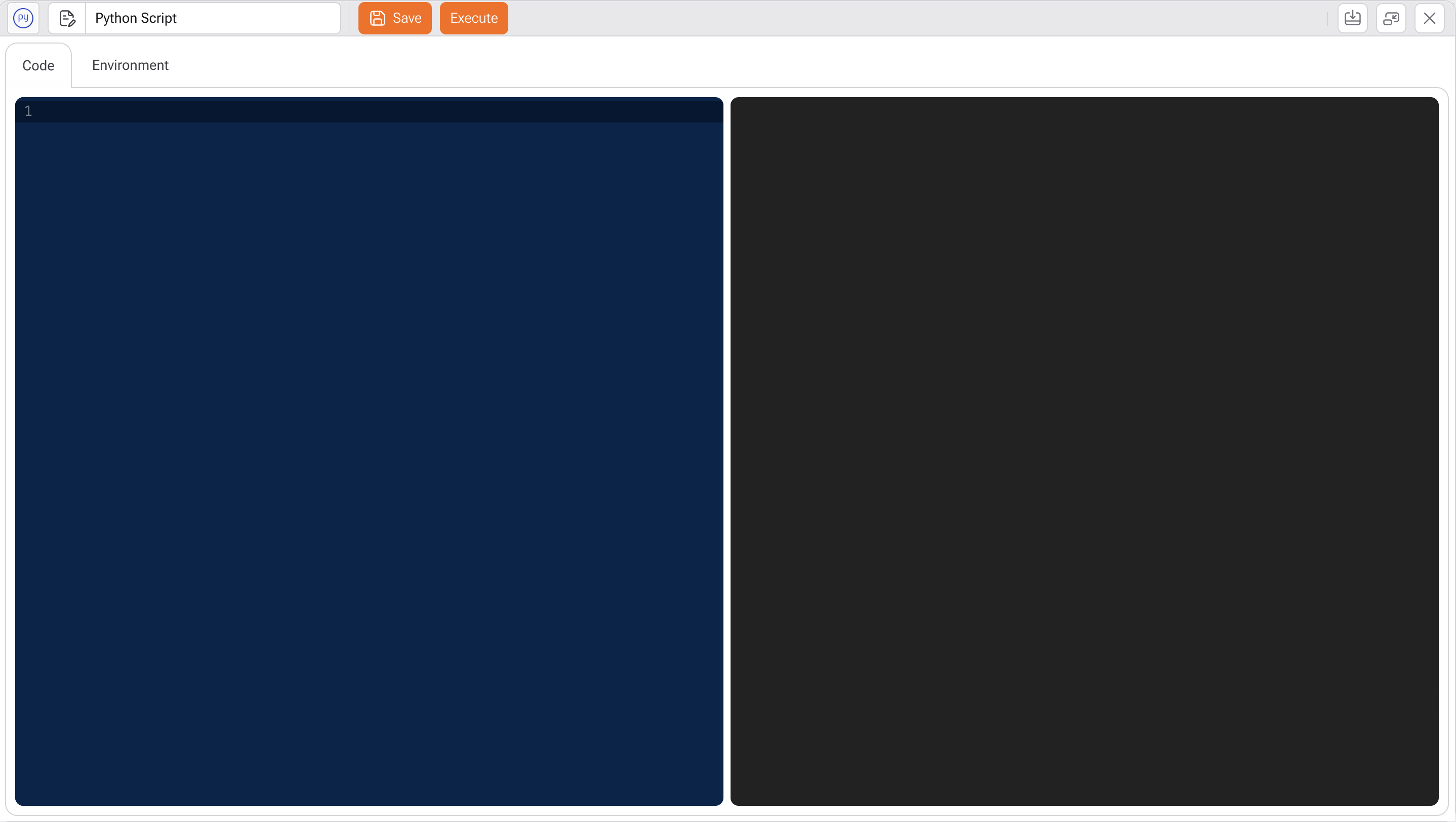
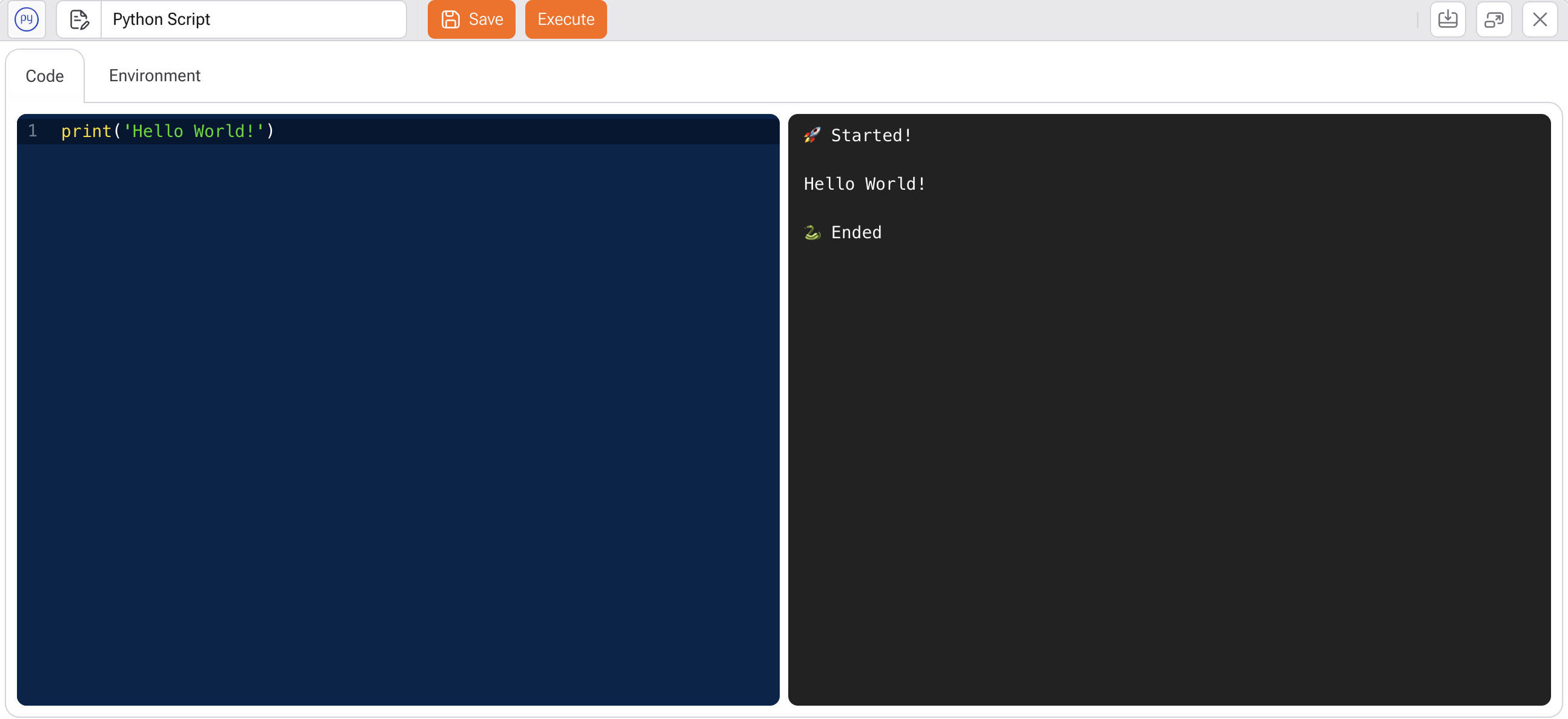
The first page is the main one for the task. In it, on the left, we have the space in a blue theme to write the script, while on the right, in a dark theme, the console is located, where we can view the script's output. To run your script, simply click the "run" button and the result will be displayed in the console.
Python Task Code Page
It is possible to save the files generated in the script, such as jpeg, png, mp4, pkl files, among others. The name of this folder is **assets.**
{% hint style="info" %}
There are three folders that you can use through the python task, which are the content, inputs and output folders of your application.
Below is an example of how to create your path to the outputs folder so you can download the generated image.
```python
path = app_assets + "outputs/imagem_name.png"
```
{% endhint %}
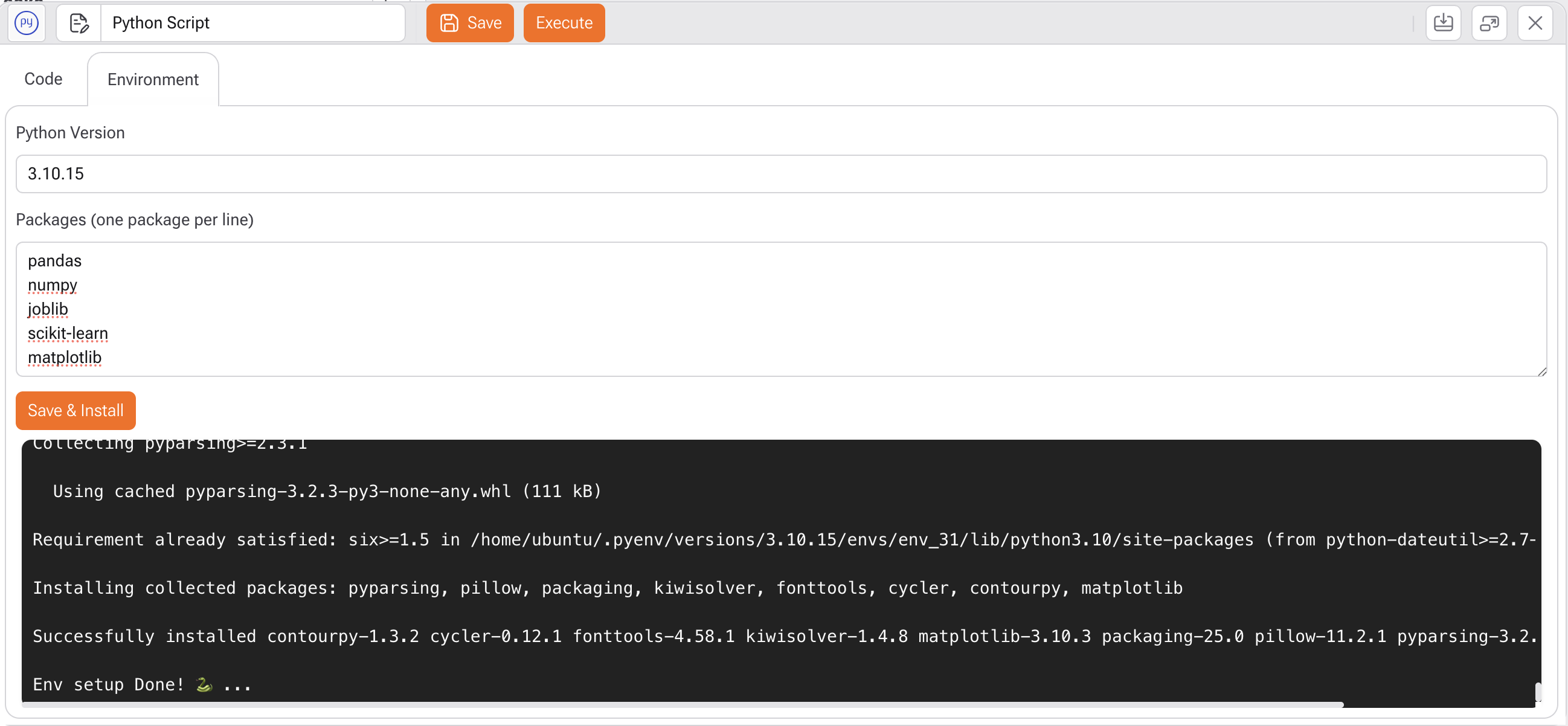
In the text box, you must write on each line the correct name of the library you want to install (just the name, without any other characters, as shown in the image below). After choosing the Python version and libraries, simply click the "Install" button for your configurations to be executed.
Python Task Environment Page
As previously mentioned, we have a class called bucket, which connects to the clickhouse in an encapsulated way and has the query\_df, command, insert\_df and create\_df methods.
### **Examples**
Function that transforms a clickhouse select into a pandas dataframe in python.
```python
df = bucket.query_df('select columnA, columnB from table where columnB = 'active')
```
Function that makes a copy of a clickhouse table indicated to a pandas dataframe.
```python
df = bucket . select_df ( 'new_table' )
```
In the first line we have the function that creates a table in clickhouse that is similar to your pandas dataframe, in the second line we insert the data from your pandas dataframe into the clickhouse table.
```python
bucket . create_df ( 'new_table' , df )
bucket . insert_df ( 'new_table' , df )
```
Note that to perform the **insert\_df** function we need your pandas dataframe to be similar to your clickhouse table.
### Practical example
In this practical example we will go through the part of bringing the data into Python, performing grouping, saving an image in png format, saving the model file, and creating and saving the final table in clickhouse.
First, let's import the libraries that will be used
```python
import pandas as pd
from sklearn . cluster import KMeans
import matplotlib . pyplot as plt
import joblib
```
For this example we will use the famous iris table provided by several libraries such as scikit-learn. This table is in the clickhouse database within Gaio.
**select\_df** function to bring it to Python, and then apply the kmeans algorithm provided by the scikit-learn library.
```python
# Bring data into python
data = bucket . select_df ( 'iris_table' )
# Apply the K-Means algorithm with 3 clusters (number chosen arbitrarily)
kmeans = KMeans ( n_clusters =3 )
data [ 'cluster' ] = kmeans . fit_predict ( data )
# Evaluate the result - for example, viewing the means of each cluster
cluster_means = data . groupby ( 'cluster' ). mean ()
```
In this next step, we will visualize the groups found by the model and save the figure in the **assets folder** .
```python
# Plot the clusters on a graph (considering only the first two columns)
plt . scatter ( data [ 'sepal_length_cm_' ], data [ 'sepal_width_cm_' ], c = data [ 'cluster' ], cmap = 'viridis' )
plt . xlabel ( 'sepal_length_cm_' )
plt . ylabel ( 'sepal_width_cm_' )
# Save the chart in png format
plt . savefig ( 'assets/cluster_iris.png' )
```
Now let's save this model so it can be reused at other times, for this we will use the joblib library.
```python
# Save the model
joblib . dump ( kmeans , 'assets/modelo_kmeans_iris.joblib' )
```
Now we can send the dataframe with the new column generated by the model to the clickhouse so that it can be used by other Gaio tasks. For this we will use **create\_df** and **insert\_df** .
```python
# Create a table in clickhouse similar to your dataframe
bucket . create_df ( 'tmp_iris_clusterizada' , data )
# Insert data from your dataframe into a clickhouse table
bucket . insert_df ( 'tmp_iris_clusterizada' , data )
```
### Using Parameters in Python Tasks
Python Tasks support **dynamic parameters**, allowing the same script to be reused with different inputs across executions, environments, or flows.
Parameters are resolved **at runtime** and injected into the script automatically.
#### 1. How Parameters Work
Parameters defined in the task configuration can be referenced directly inside the Python code using the following syntax:
```python
{{params.parameter_name}}
```
#### 2. Common Use Cases
* Dynamic file ingestion paths
* Table or schema selection
* Conditional execution logic
* Environment-based configuration
* Date-based processing
#### 3. Important Notes
* Parameter names are **case-sensitive**
* Always validate parameter values before using them in critical logic
* Avoid hardcoding values when parameters can be used instead
***
### Using Temporary Tables in Python Tasks
`bucket.tmp_context_table_name(table_name)`
Returns the name of a temporary table scoped to the current session, ensuring isolation between users and preventing naming conflicts in concurrent executions.
#### **Usage:**
```python
name = bucket.tmp_context_table_name('tmp_my_table')
bucket.command(f'CREATE TABLE {name} (...) ENGINE = MergeTree() ORDER BY tuple()')
```
#### Behavior
The function dynamically adjusts the table name depending on the execution context:
* **Contexts with session scope** (e.g., `file-import`, `source`, etc.):\
`tmp_my_table` → `tmp_gaio{sessionId}_my_table`
* **Contexts without session scope** (e.g., `studio`, `cron`, `rest`, `api`):\
`tmp_my_table` → `tmp_my_table` (no modification)
This mechanism guarantees that temporary tables created in session-based environments remain isolated and do not interfere with other users or processes.
#### When to Use
Use this function **whenever creating or referencing temporary tables (`tmp_`) in Python scripts**.\
It prevents table name collisions across concurrent sessions and ensures proper isolation in multi-user environments.
#### Complete Example
```
import pandas as pd
df = pd.DataFrame({
'col1': [1, 2],
'col2': ['a', 'b']
})
table = bucket.tmp_context_table_name('tmp_my_table')
bucket.create_df(table, df)
result = bucket.query_df(f'SELECT * FROM {table}')
print(result)
```