> For the complete documentation index, see [llms.txt](https://docs.gaiodataos.com/llms.txt). Markdown versions of documentation pages are available by appending `.md` to page URLs; this page is available as [Markdown](https://docs.gaiodataos.com/tools/diagram-schema.md).
# Diagram (Schema)
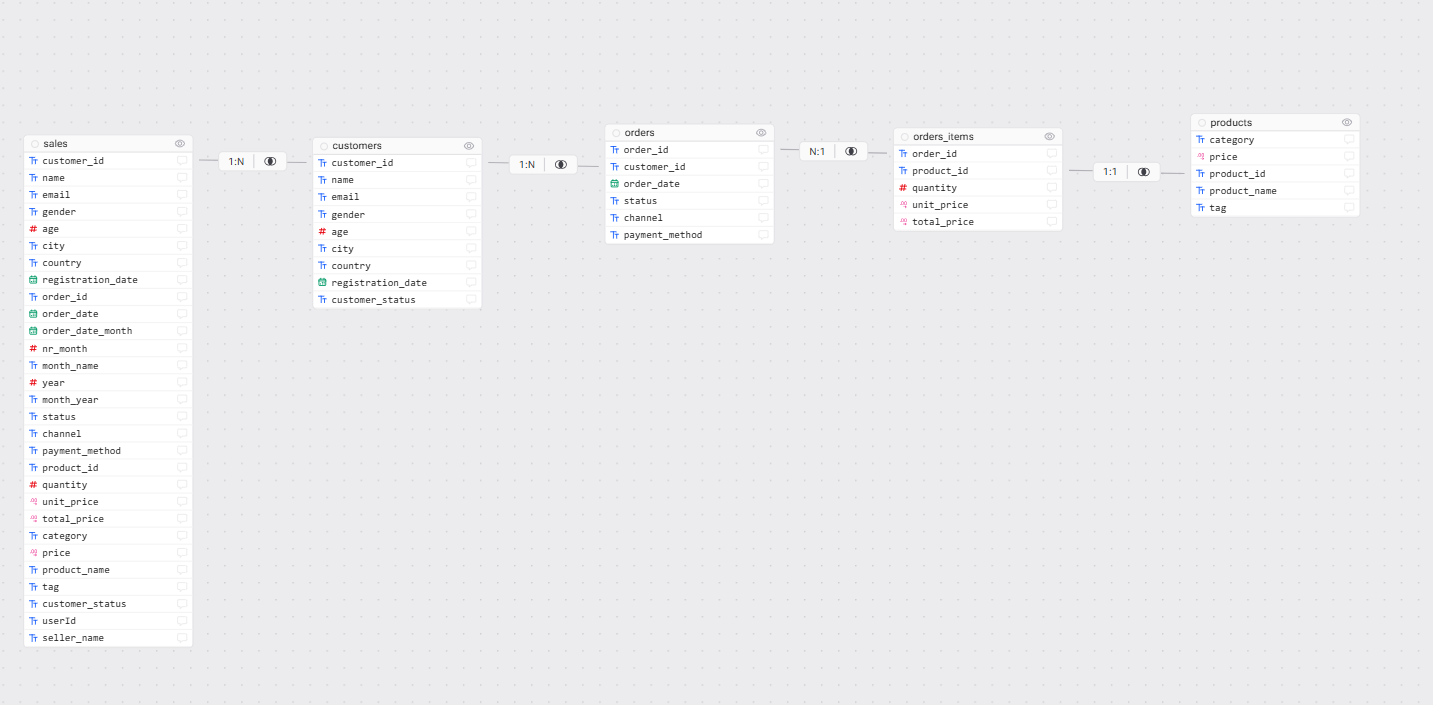
The **Diagram (Schema)** tool provides a **visual representation of data models and table relationships**. It helps developers and AI agents understand **how datasets are structured and connected**, making data exploration, analysis, and reasoning more accurate. This tool can also be **enabled for**[ **AI agents**](https://docs.gaiodataos.com/~/revisions/rkfXkYnUYKcE9UobTIFI/tools/agents), allowing them to interpret relationships between tables when answering questions or generating insights.
The Diagram tool is designed to:
* Visualize relationships between tables
* Clarify one-to-one, one-to-many, and many-to-many relations
* Serve as a reference for data modeling and analytics
* Provide structural context to AI agents
## How to configure diagrams
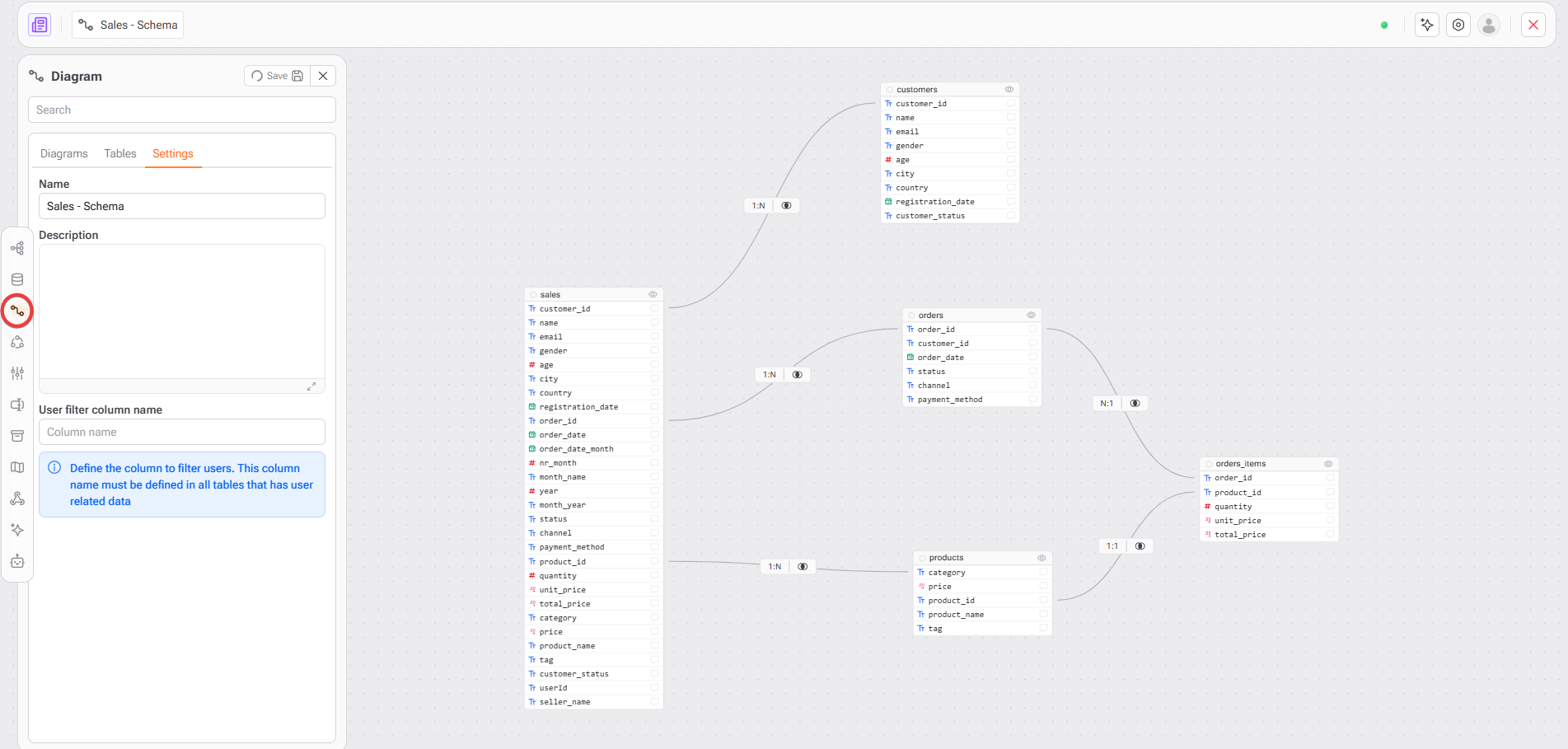
1. Access the diagram via the icon in the side menu
2. Inside Settings, it is possible to define a clear name for the schema or diagram.
3. Describe the purpose and scope of this schema.
4. Define the column used to filter user-related data.
5. In the tables tab, users can select and filter the tables they want to drag onto the canvas.
6. After dragging the desired tables, the user can create relationships between the databases using the keys for each table.
7. After relating the tables, it is possible to define the relationship cardinality.
8. Click the **Save** button to persist the schema configuration.
9. Access the diagram configured in the Diagrams tab at the panel.
These relationships help both users and agents understand:
* How data flows
* Which tables should be joined
* Where aggregations make sense
## Metadata Viewer
Click **“View metadata”** to access the generated schema metadata.
This metadata is represented as a **JSON structure** and includes:
* Tables
* Columns
* Data types
* Nullability
* Database and schema references
***
### Metadata Structure Explained
#### Tables Section
```json
{
"tables": [
{
"tableName": "sales",
"databaseName": "bucket_78",
"fields": [...]
}
]
}
```
| Attribute | Description |
| -------------- | ---------------------------------- |
| `tableName` | Table where the column belongs |
| `columnName` | Column name |
| `columnLength` | Column size (if applicable) |
| `dataType` | Physical data type and nullability |
#### Why Metadata Matters
The metadata generated here is used by:
* **AI features** (contextual understanding of data)
* **Query builders**
* **Data discovery**
* **Governance and lineage**
* **Automated documentation**
It ensures that:
* Column semantics are consistent
* AI responses are accurate
* Downstream tools understand the schema correctly
## How AI Agents Use the Diagram
When enabled for an AI agent, the Diagram allows the agent to:
* Understand table relationships before querying
* Choose correct join paths
* Avoid incorrect assumptions about data structure
* Explain results with structural context
## Best pratices
* Keep schemas focused and domain-specific
* Use clear and consistent naming
* Define user filter columns when applicable
* Avoid overly complex diagrams in a single schema
* Enable diagrams only for agents that need structural understanding
{% hint style="success" %}
A clean schema improves both human and AI comprehension.
{% endhint %}