> For the complete documentation index, see [llms.txt](https://docs.gaiodataos.com/llms.txt). Markdown versions of documentation pages are available by appending `.md` to page URLs; this page is available as [Markdown](https://docs.gaiodataos.com/getting-started/gaio-dataos.md).
# Gaio DataOS
## Accessing Gaio DataOS
This quick guide will show you how to access and start using Gaio DataOS safely and easily.
***
### 1. Getting started
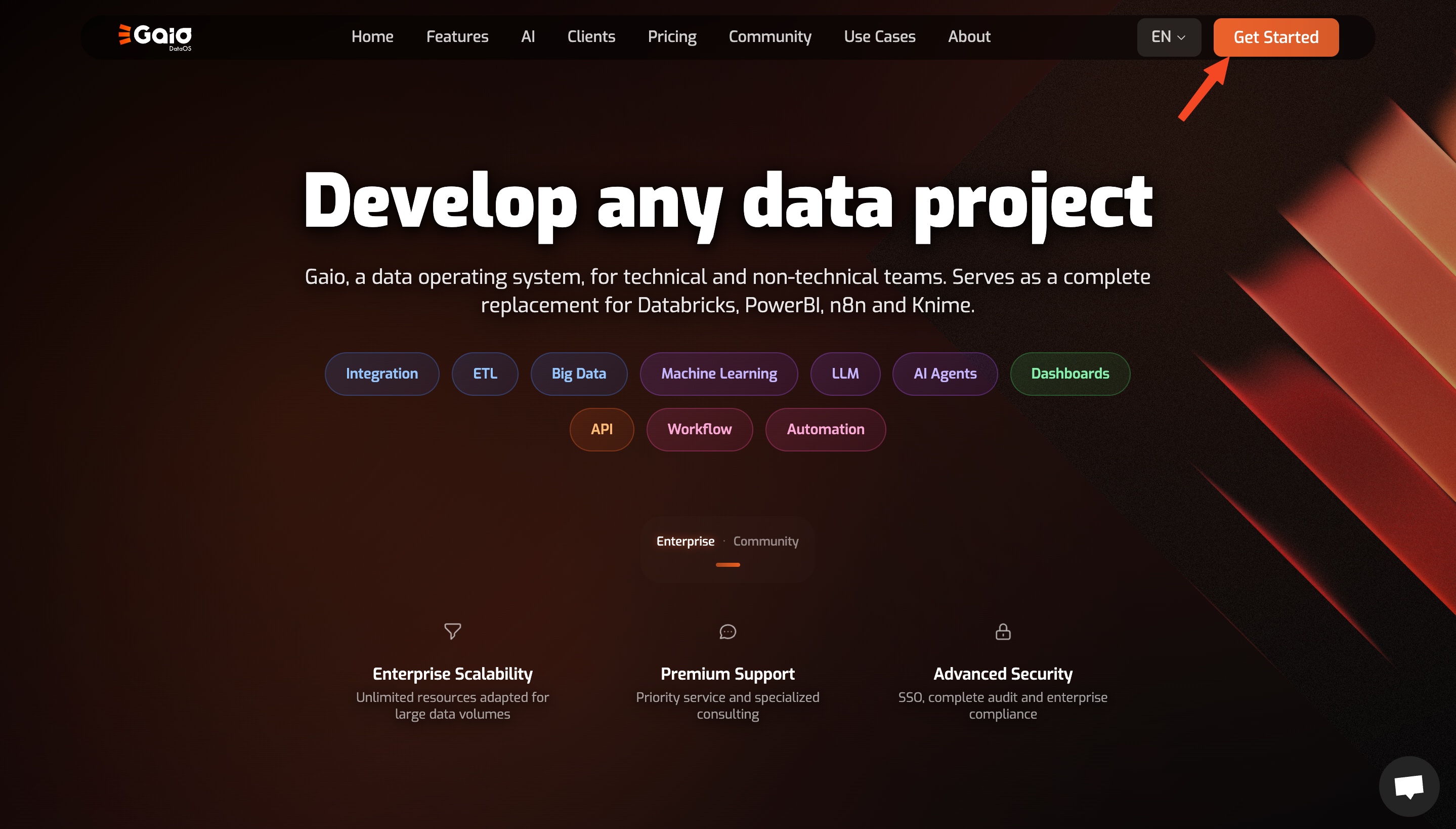
First, visit the [Gaio website ](https://gaiodataos.com/)to begin your registration. Go to **Get Started** to choose your license. From there, you will be directed to the console page to enter your email address and begin your registration.
### Choosing a license
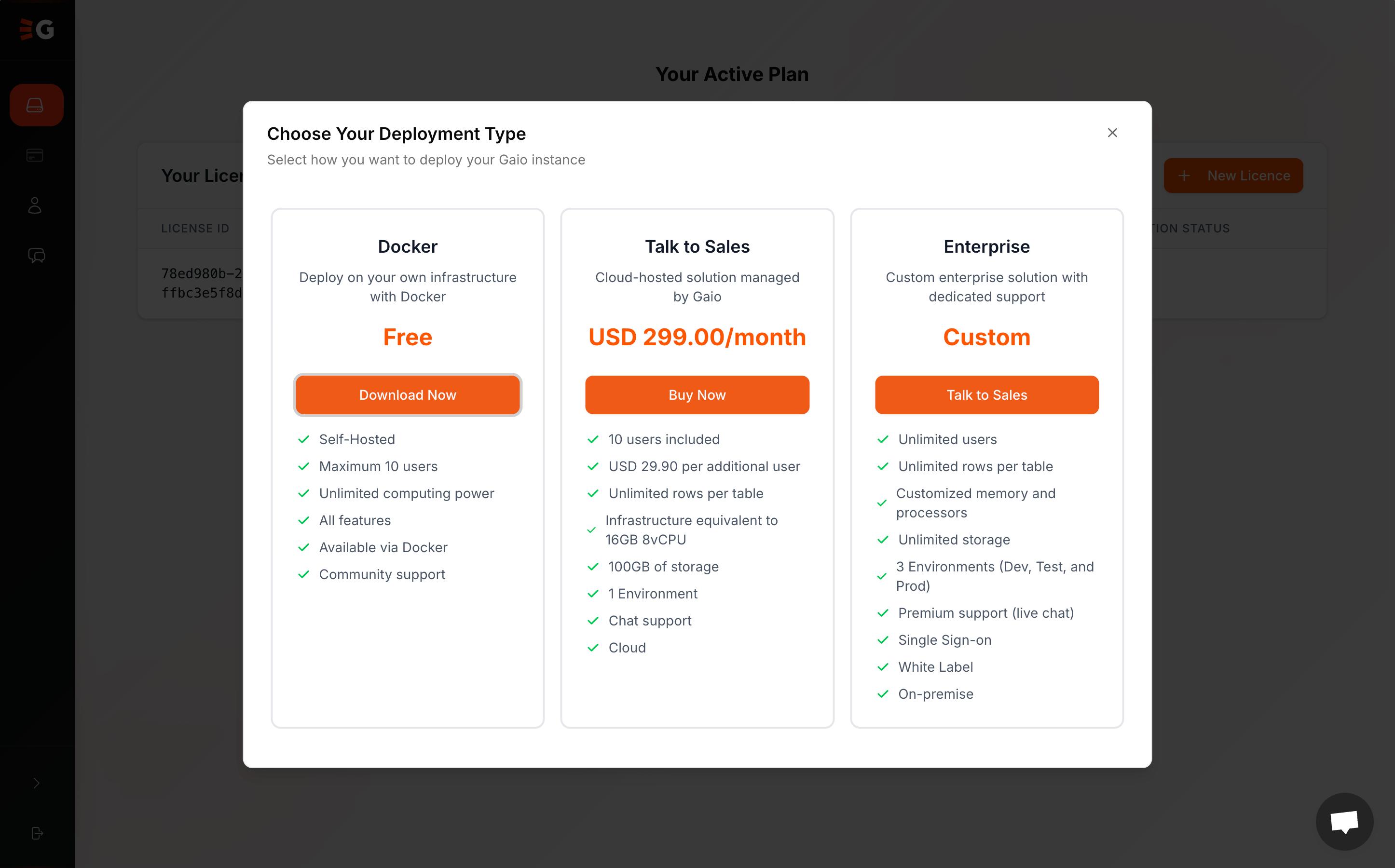
After registering, select the license in the **Instances tab**. For Cloud-Hosted solution or Enterprise licenses, you will be redirected to support and scheduling with the sales team.
{% hint style="info" %}
For information on how to use the Docker version, [click here](https://docs.gaiodataos.com/~/revisions/tTopPz3RC0MehJmvrNTp/getting-started/installation-with-docker).
{% endhint %}
***
### 2. Log in with your credentials
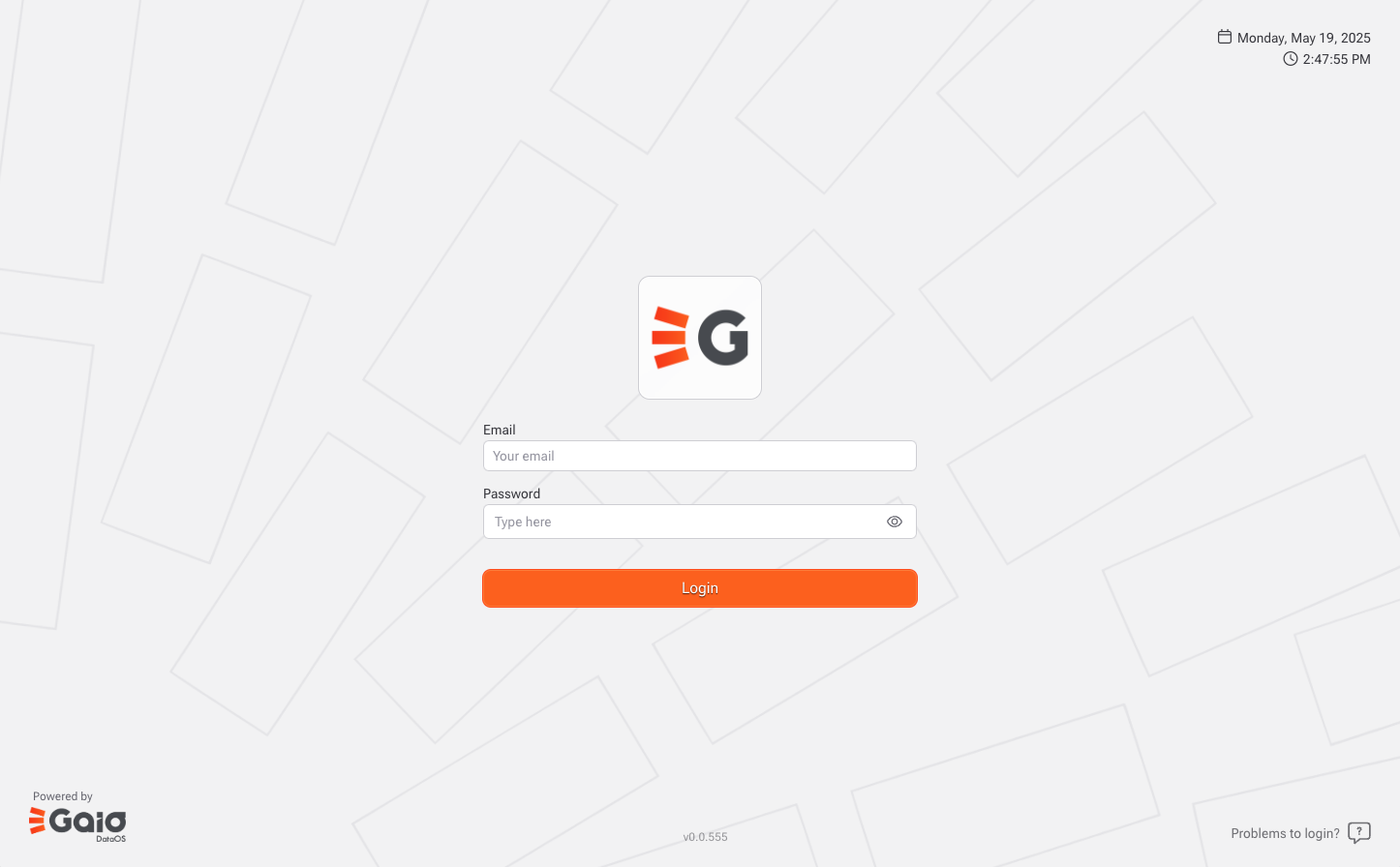
Once your instance is open, use the login credentials provided:
* **Email:** `your-email@exemple.com`
* **Initial password:** (copy it using the icon next to the password field)
{% hint style="warning" %}
When logging in for the first time, you will be prompted to create a new personal password. Make sure to store your credentials securely.
{% endhint %}
***
### 3. Instance information
In the instance control panel, you’ll find key details:
* **Active license:** `Gaio Free`
* **Start date:** `May 14, 2025`
* **Status:** `Ready` (ready to use)
***
### 4. Create a new instance (optional)
If you want to start a new environment:
* Click the **`+ New Instance`** button at the top right of the screen.
***
### 5. Delete an instance (with caution!)
If you wish to remove the current instance:
* Click **`Delete`** (red button at the bottom right corner).
{% hint style="danger" %}
This action is permanent and cannot be undone. Make sure all important data is backed up or transferred before deleting.
{% endhint %}
***
### All set!
You’re now ready to explore the features of Gaio DataOS and start turning data into strategic decisions.
If you need help, contact our support team or continue browsing the next tutorials.