> For the complete documentation index, see [llms.txt](https://docs.gaiodataos.com/llms.txt). Markdown versions of documentation pages are available by appending `.md` to page URLs; this page is available as [Markdown](https://docs.gaiodataos.com/tools/export-and-import-projects.md).
# Export and Import Projects
## **Project Overview Panel**
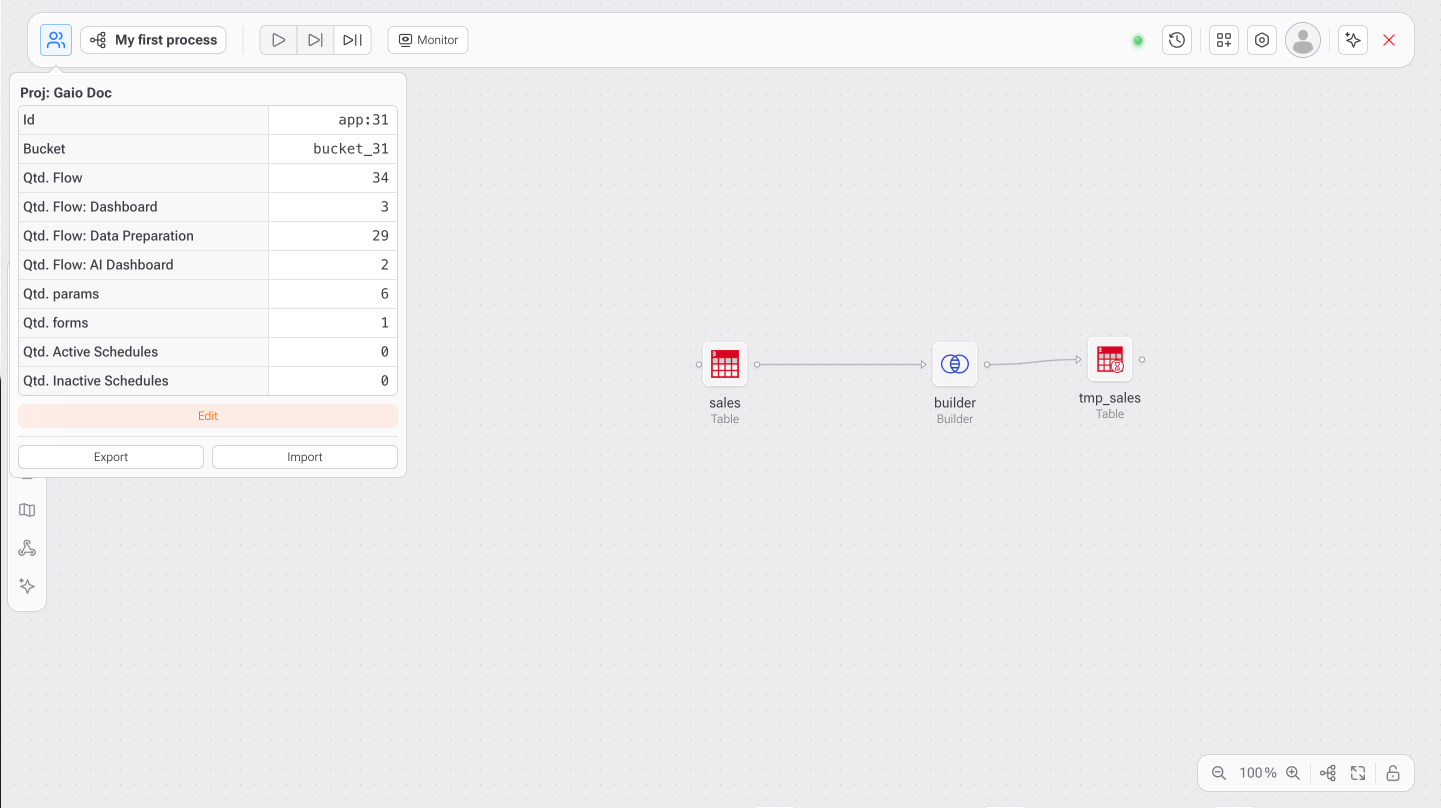
At the top-left of the screen, you'll find a panel showing your current project (e.g., `Proj: Gaio Doc`) along with key metadata:
* Application ID (`app:31`)
* Data bucket name (`bucket_31`)
* Number of flows, dashboards, forms, and other technical components
This panel also includes the main actions to **export and import** your project.
***
## **How to Export an Application**
You can export your current application — including flows, parameters, forms, APIs, AI dashboards, and tables — into a single **`.zip` file containing multiple `.json` files**. This is ideal for:
* Creating backups
* Sharing with teammates
* Migrating between environments (e.g., dev → prod)
* Reusing the structure in new applications
### Step-by-step:
1. Click the **Export** button in the bottom section of the project panel.
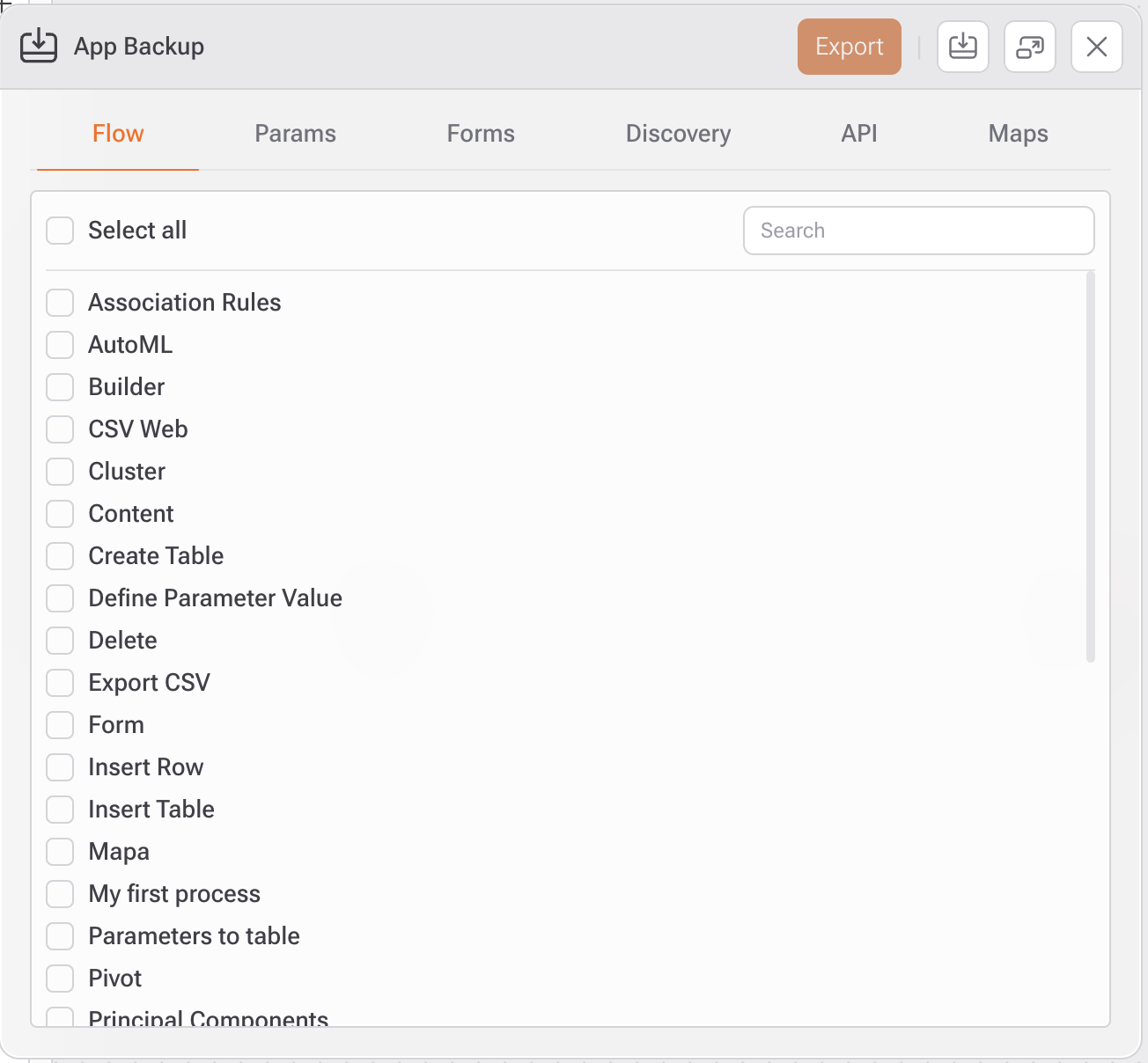
2. A new window will open with tabs such as:
* `Flow`: SQL and visual flows
* `Params`: parameters used across the app
* `Forms`: custom user input forms
* `Discovery`: AI-enabled searches, insights, and tables
* `API`, `Maps`, and more
3. Select the items you wish to include by ticking their checkboxes.
4. Click the **Export** button in the top-right corner.
5. A `.zip` file will be generated containing your app's structure and logic.
***
### View Exported Files
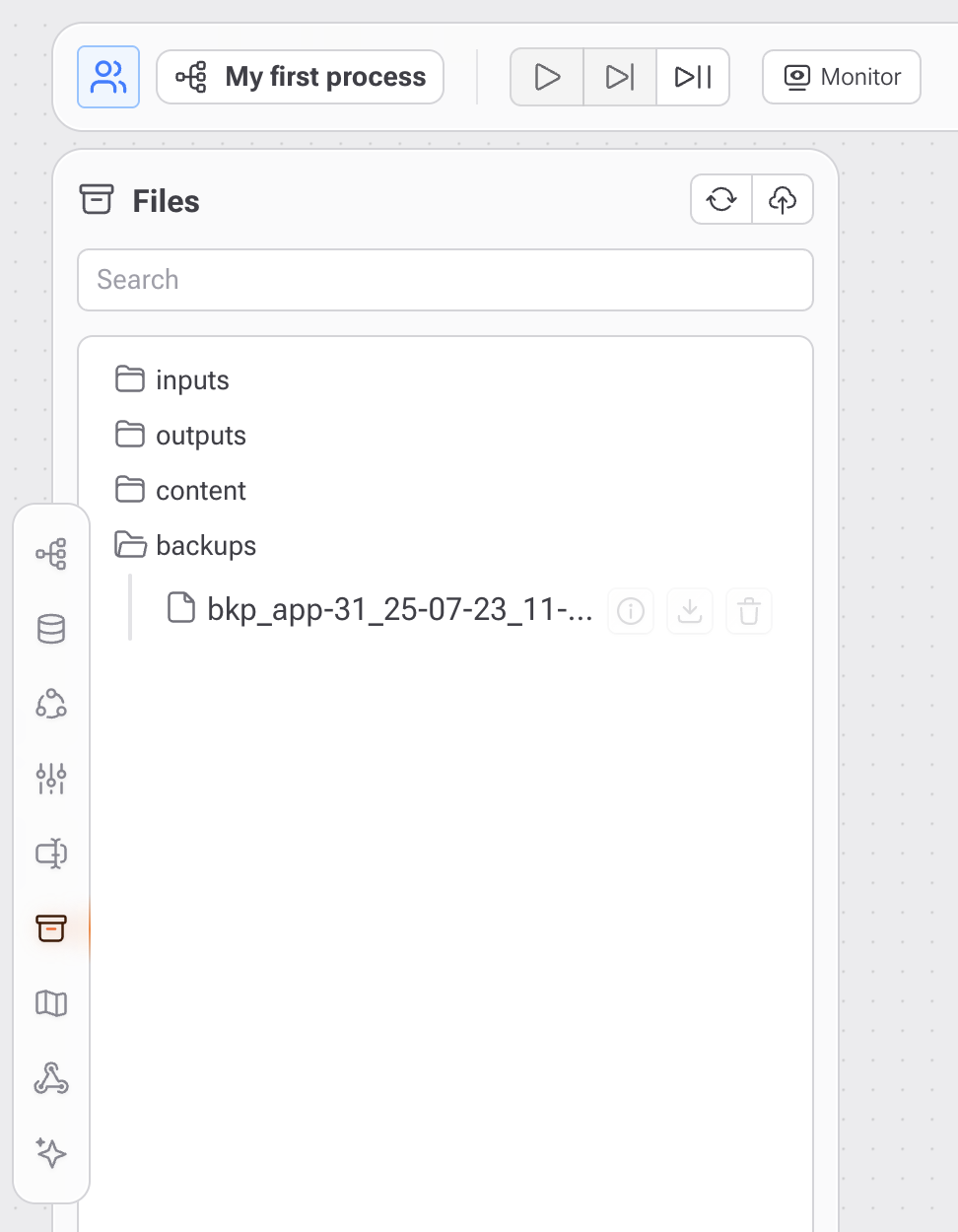
After exporting, go to the **Files** panel (folder icon in the sidebar). Your uploaded `.zip` file will appear under the `backups` folder. From there, you can:
* View the file
* Download it
* Delete it
***
## **How to Import an Application**
Importing allows you to fully or partially restore a project from a previously exported `.zip` file.
### Step-by-step:
1. Click the **Import** button in the project panel.
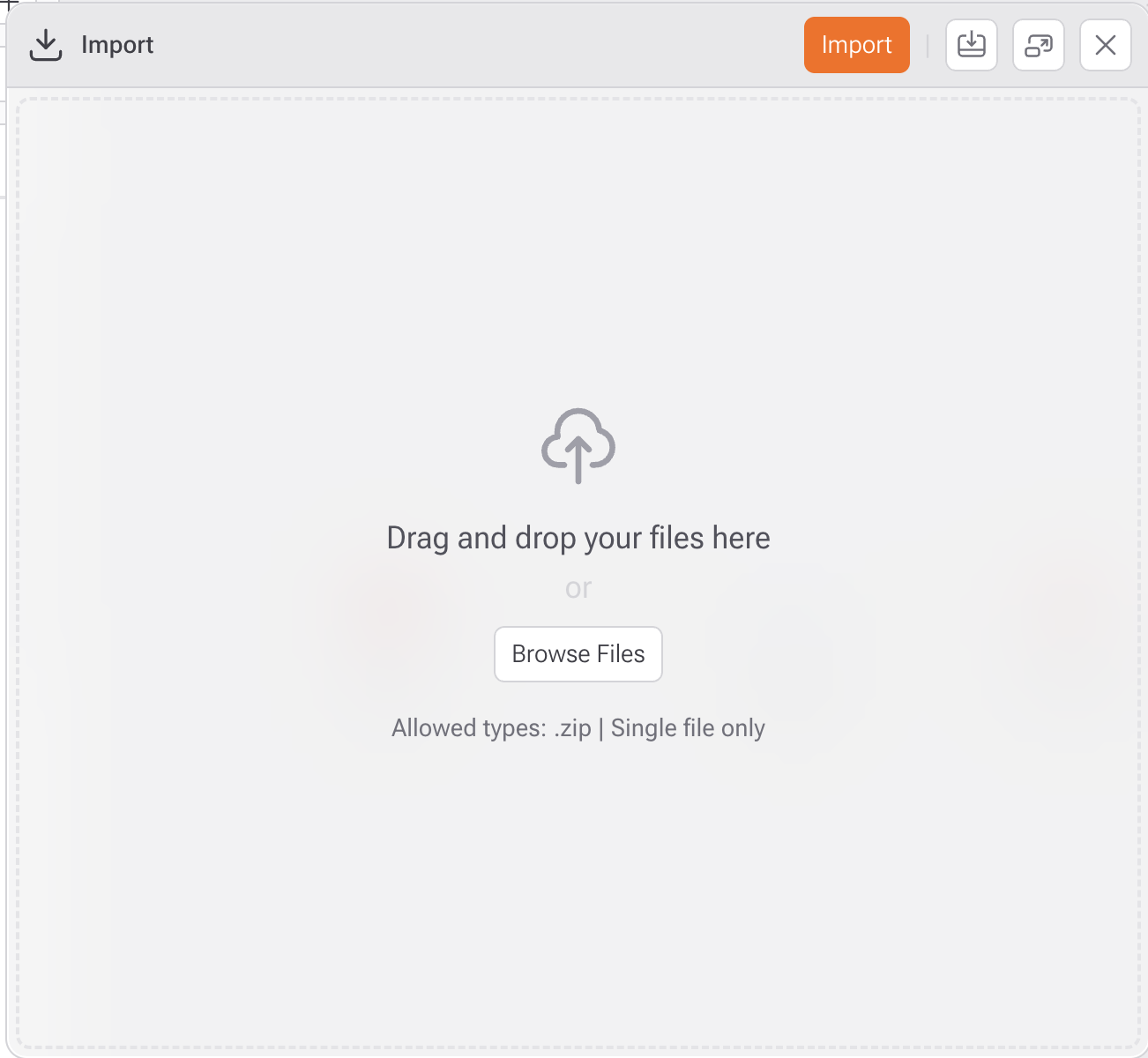
2. A new screen will prompt you to upload your `.zip` file:
* Drag and drop the file
* Or click **“Browse Files”** to select it
3. Click **Import**.
4. Gaio will process the contents and restore:
* Flows
* Parameters
* Forms
* Discovery insights and AI-related items
* APIs and additional elements
***
### Best Practices
* Always export a backup before making critical changes
* Use the import/export feature to replicate applications across buckets or environments