> For the complete documentation index, see [llms.txt](https://docs.gaiodataos.com/llms.txt). Markdown versions of documentation pages are available by appending `.md` to page URLs; this page is available as [Markdown](https://docs.gaiodataos.com/tools/agents.md).
# Agents
The **Agents** feature is the core area for creating and managing artificial intelligence capabilities within the system. It allows you to build **chat agents**, **RAG structures (Retrieval-Augmented Generation)**, and **tools** that extend what agents can know and do.The main goal of this section is to help you **design agent behavior, knowledge, and actions** in a structured, reusable, and scalable way.
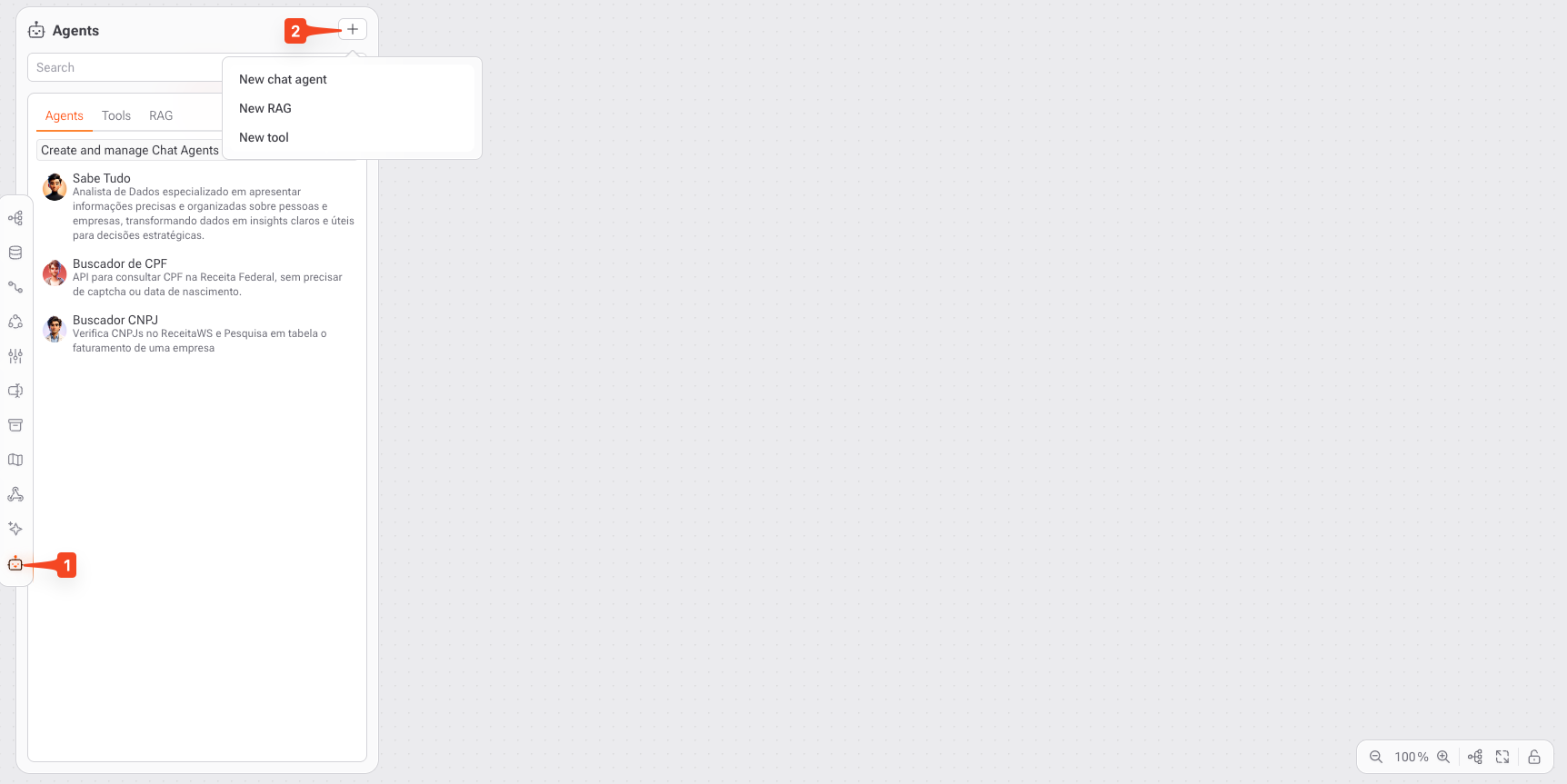
When you access **Agents**, you will see:
* A **left sidebar** listing all created agents
* A **search field** to quickly locate agents
* Top tabs to switch between:
* **Agents**
* **Tools**
* **RAG**
* A **( + ) button** to create new resources
## How to configure your Agent
1. **Accessing the Agents Area**
1. In the left navigation menu, click the Agents icon;
2. You will be taken to the agent creation and management screen.
This screen works as a **central control panel**, where you can:
* Create new agents
* Edit existing agents
* Manage tools and knowledge bases
* Define how each agent behaves inside the system
2. **Creating a new resource**
1. Click the (+) button at the top of the screen
2. Select one of the available options:
1. New chat agent: Create a conversational agent with defined personality, goals, and rules
2. New RAG: Create a contextual knowledge base for retrieval
3. New tool: Create a tool that performs actions or integrations
### How to create a New RAG (Retrieval-Augmented Generation)
First of all, a **RAG** is a knowledge layer that allows agents to **retrieve information from documents and files** and use that content to generate more accurate, contextual, and reliable responses. Instead of relying only on the model’s general knowledge, RAG enables the agent to **ground its answers in your own data**.
Basically, RAG is designed to:
1. Provide **fact-based answers** using internal documents;
2. Reduce hallucinations by grounding responses in real content;
3. Enable agents to work with:
* CSV files
* Text documents (PDF, .doc, .txt, .md, .pptx, etc)
* Structured and semi-structured data (.json, .png, .jpg, .mp3, .mp4, etc)
{% hint style="info" %}
A RAG does not act on its own. It must be **attached to a Chat Agent** to be used during conversations.
{% endhint %}
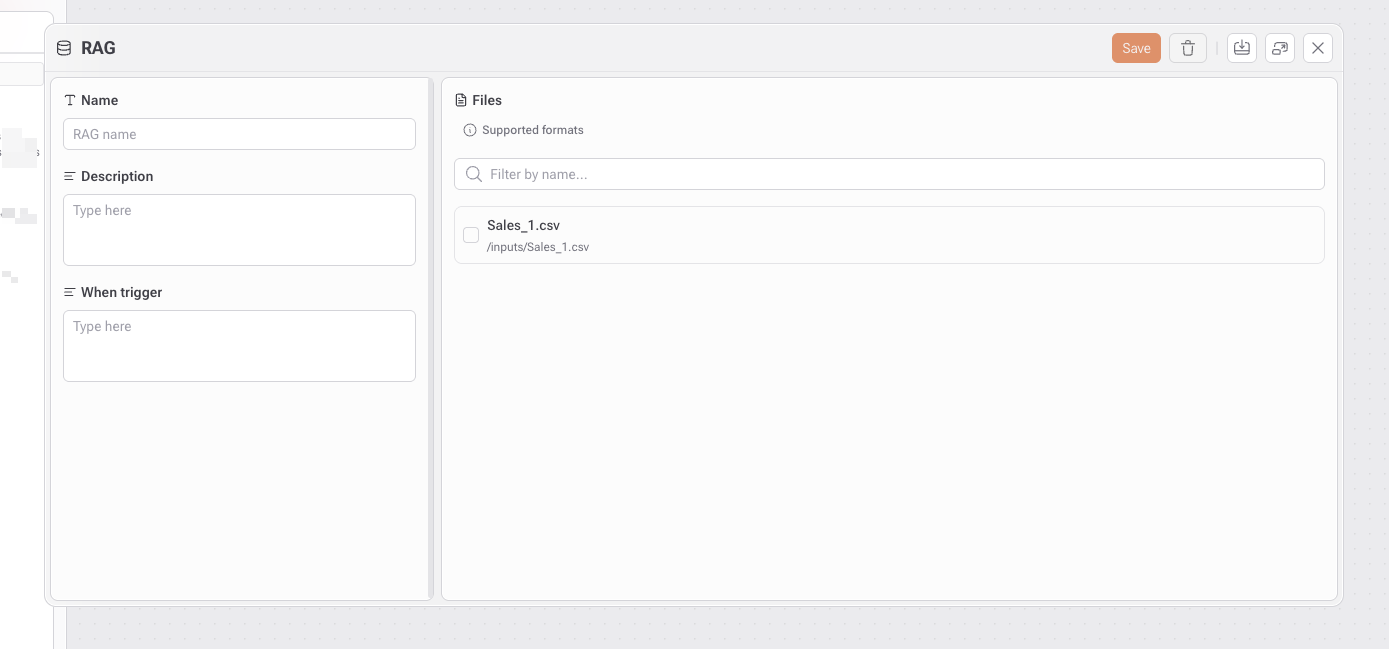
The RAG configuration screen is divided into two main areas:
* **Left panel** → RAG definition and behavior
* **Right panel** → File selection and management
After opening the panel, it is recommended to enter a clear and descriptive name for the RAG that reflects the dataset or domain, describes the type of information provided, and defines when the agent should consult this file.\
On the Files section, you can:
1. Use the search field to filter files by name.
2. Select one or more files from the list.
Once selected, the content of these files becomes searchable by the agent.
{% hint style="info" %}
To import files, see the [Files Ingest](https://docs.gaiodataos.com/~/revisions/ihb6ExonxKYgDpEYd1Cr/tools/tasks/etl/files-ingest) section in this document.
{% endhint %}
### How to configure new tools
**Tools** define **what actions an agent can perform** beyond conversation. They extend an agent’s capabilities by enabling integrations, secure data access, controlled queries, and media handling. An agent can only use tools that are **explicitly created and assigned to them**. This ensures safety, predictability, and governance.
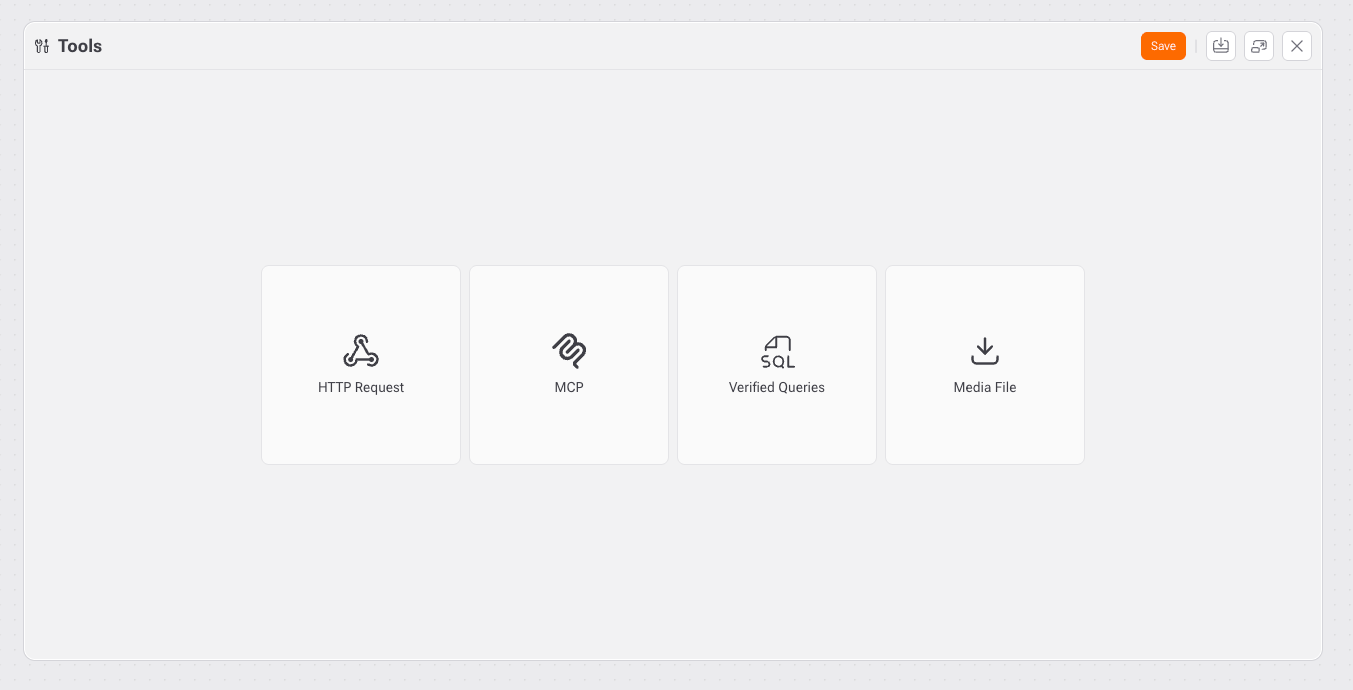
On the **Tools** screen, you can create and manage the following tool types:
| Tool | Purpose |
| ---------------- | --------------------------------------- |
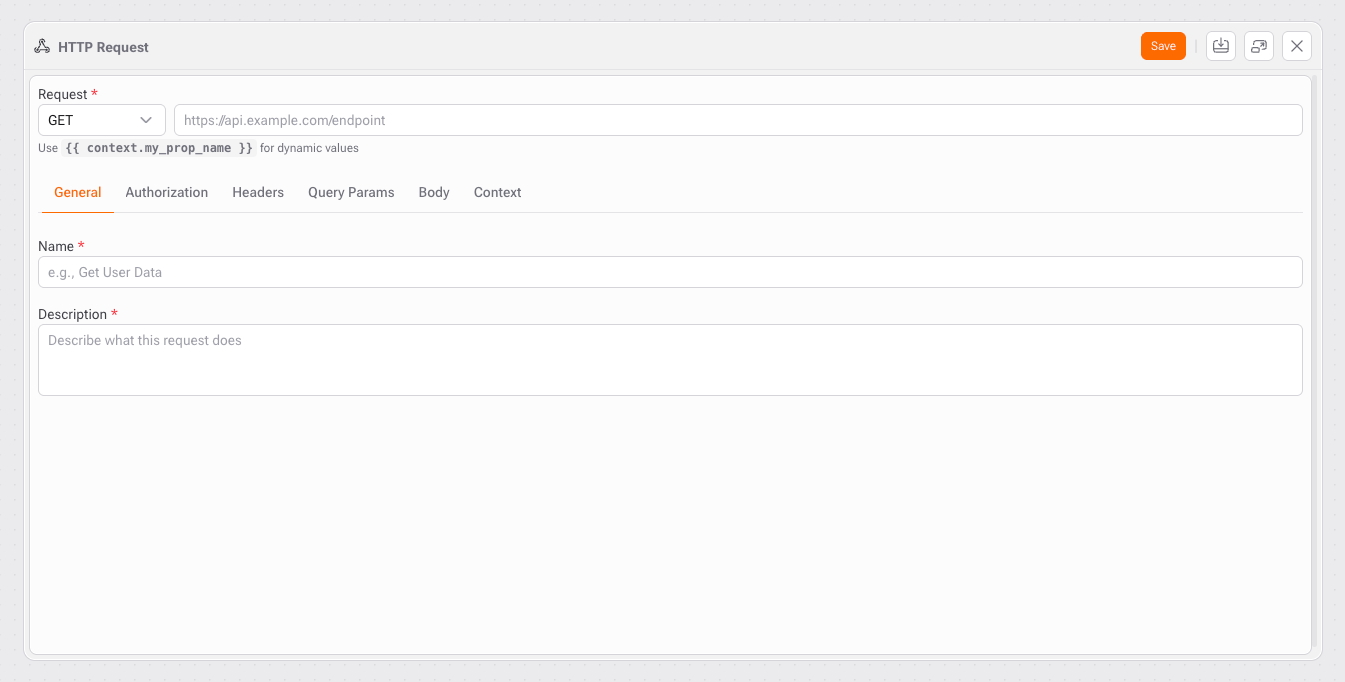
| HTTP Request | Call external APIs and services |
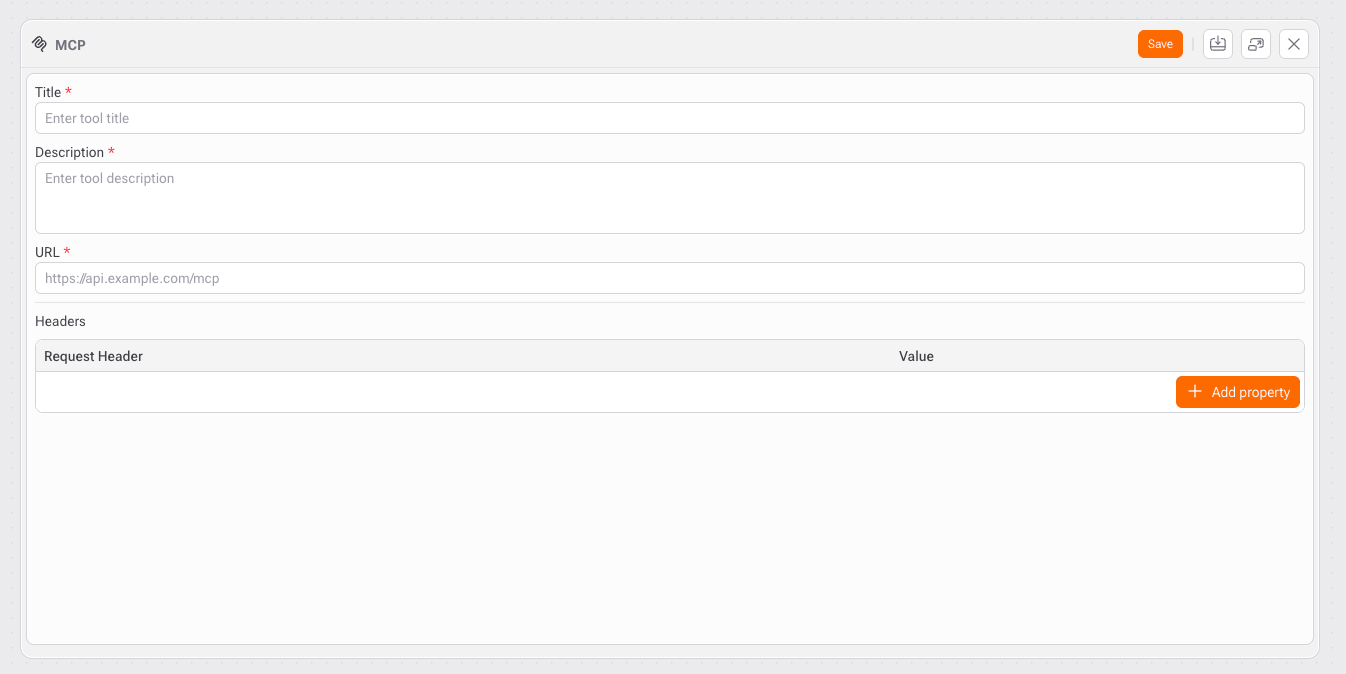
| MCP | Connect to MCP-based APIs and services |
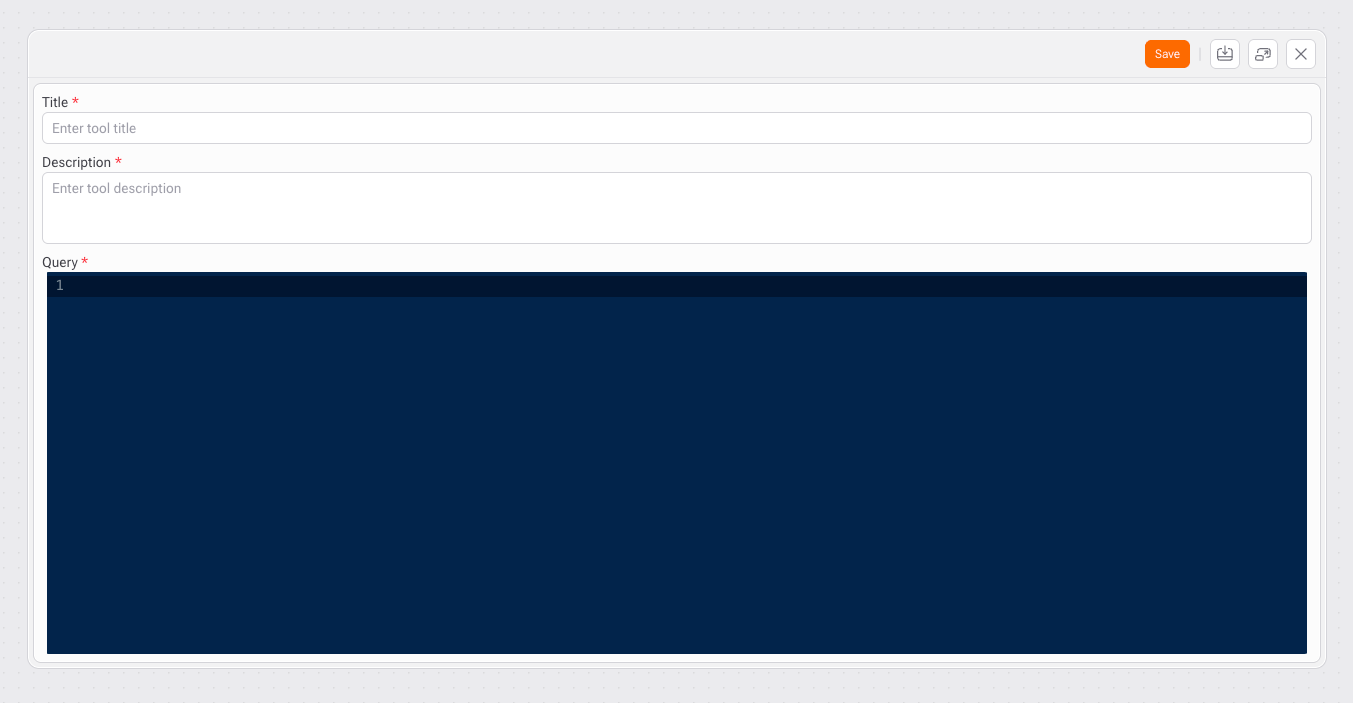
| Verified Queries | Execute pre-approved SQL queries safely |
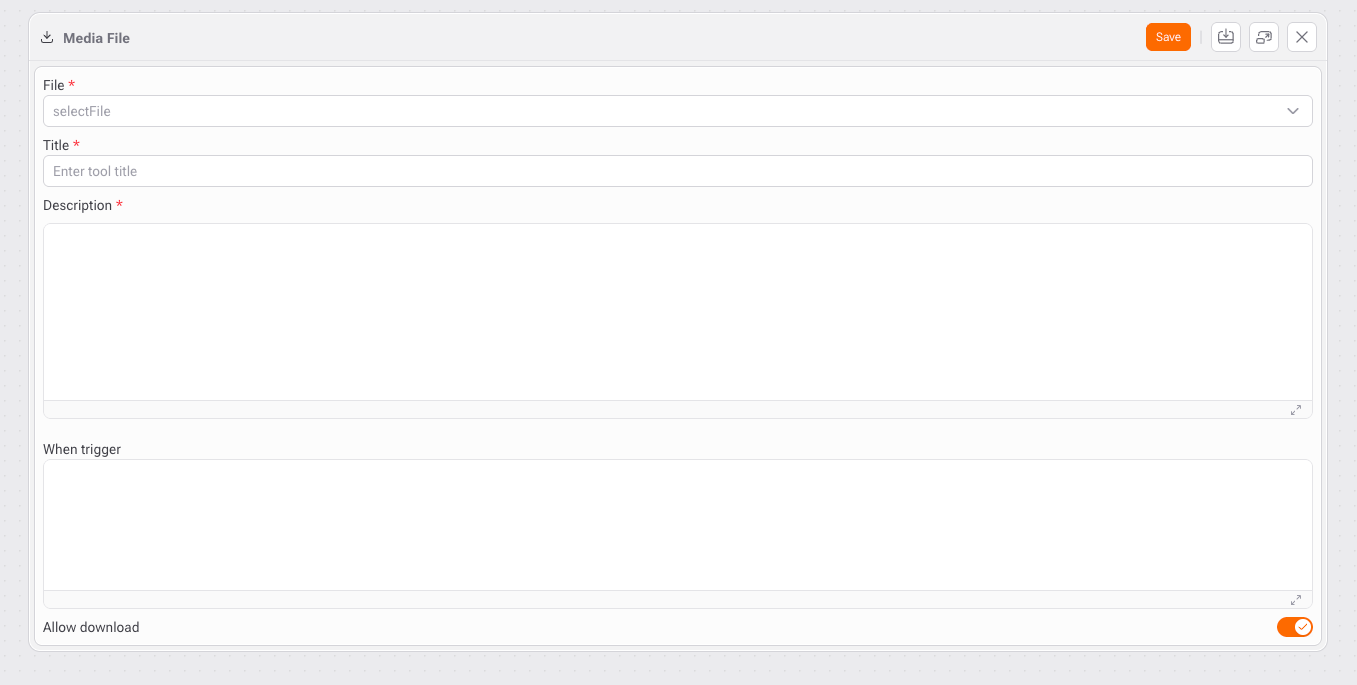
| Media File | Selected and retrieve media assets |
Each tool type is designed for a specific class of action and has its own configuration model.
1. **Creating a new tool:**
1. Open the **Tools** section
2. Click on the desired tool type card
3. Configure the tool parameters
4. Click **Save** to persist the tool
#### HTTP Request
The **HTTP Request** tool allows an agent to interact with **external APIs** using standard HTTP methods.
**Typical use cases:**
* Fetch data from third-party services
* Send data to external systems
* Trigger workflows or webhooks
**Key characteristics:**
* Supports Rest-based APIs
* Parameters are explicitly defined
* An agent can only call configured endpoints
#### MCP
The MCP tools enable integration with MCP-compliant APIs.
**Typical use cases:**
* Access internal or partner services exposed via MCP
* Standardized API interactions
* Controlled access to enterprise systems
**Key characteristics:**
* Strongly structured API access
* Designed for enterprise-grade integrations
* Reusable across multiple agents
#### Verified Queries
The **Verified Queries** tool allows agents to run **pre-approved SQL queries** safely.
**Purpose:**
* Prevent arbitrary query execution
* Enforce data governance
* Guarantee performance and security
**How it works:**
1. Queries are defined and validated in advance
2. Only these queries can be executed by agents
3. Agents can pass parameters, but not alter logic
**Important:**\
Agents cannot write or modify SQL. They can only execute **verified queries**.
#### Media Files
The **Media File** tool allows an agent to **access, reference, and optionally deliver files** during a conversation. It is commonly used when an agent needs to **share documents, images, or other assets** as part of its response. This tool is ideal for **support materials, reports, visual assets, and downloadable content**.
Use the Media File tool when you want an agent to:
* Provide files as part of an answer
* Reference official documents or media assets
* Deliver controlled downloads to users
* Enrich responses with visual or supporting material
#### How to create your Agent
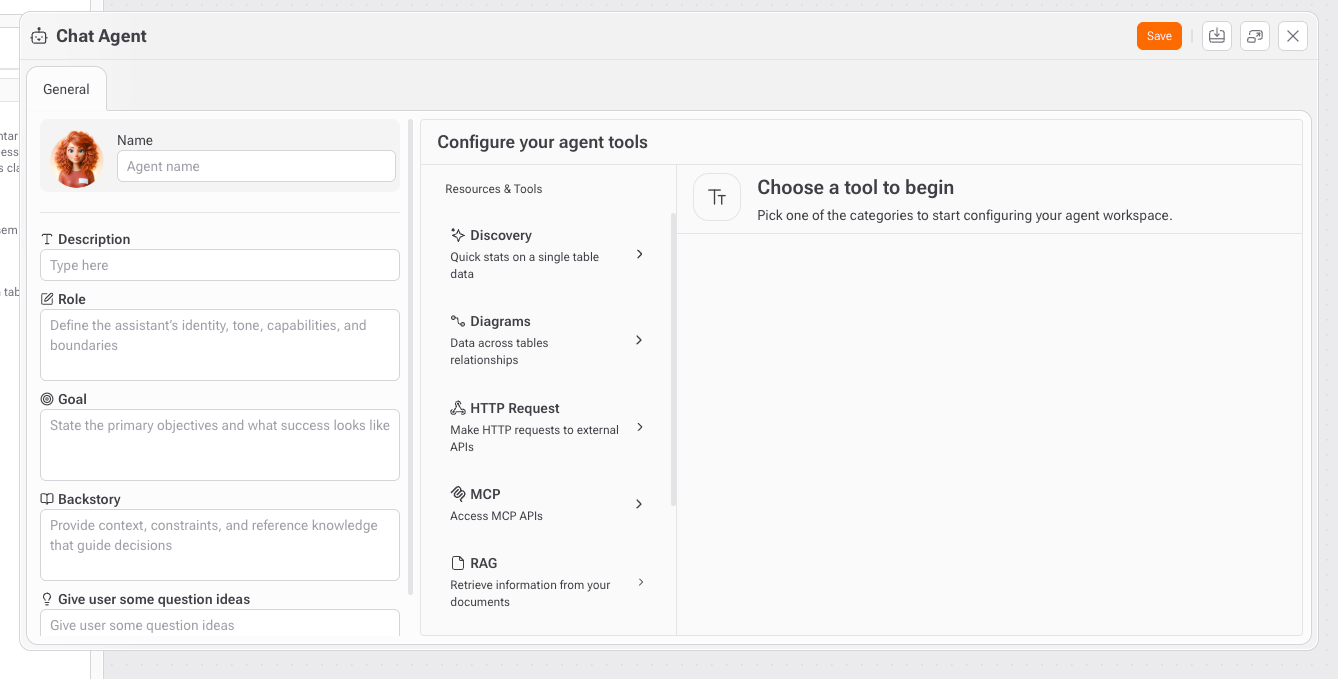
Once **Tools** and **RAGs** have been created, the developer can assemble a **Chat Agent**. This step defines **who the agent is**, **how it behaves**, and **what it is allowed to access**.
A Chat Agent acts as the **orchestration layer**, combining:
* Identity and intent
* Behavioral rules
* Knowledge sources (RAG or table data)
* Diagrams (data across tables relationships)
* Action capabilities (Tools)
All agent-level configurations are defined in the General tab, where you can:
* Provide a clear and meaningful name for the agent.
* Write a short description explaining what the agent does.
* Define the agent's identity, tone, capabilities, and boundaries.
* Describe the agent's primary objective and success criteria.
* Provide context, constraints, and domain background.
* Provide example questions to guide the end user.
After defining the agent’s identity, the developer configures **what the agent can access**.
{% @arcade/embed flowId="XZMXCSkFswdfAiYiYxkG" url="" %}
{% hint style="info" %}
For discovery settings, please access this [section](https://docs.gaiodataos.com/~/revisions/tXsIwAk6feCVad8u6hWf/tools/discovery).
{% endhint %}
{% hint style="info" %}
For Schema creation, please access this [section](https://docs.gaiodataos.com/~/revisions/g8M3e4iVxLZxX71niGCJ/tools/diagram-schema).
{% endhint %}