> For the complete documentation index, see [llms.txt](https://docs.gaiodataos.com/llms.txt). Markdown versions of documentation pages are available by appending `.md` to page URLs; this page is available as [Markdown](https://docs.gaiodataos.com/tools/tasks/analytics/agent.md).
# Agent
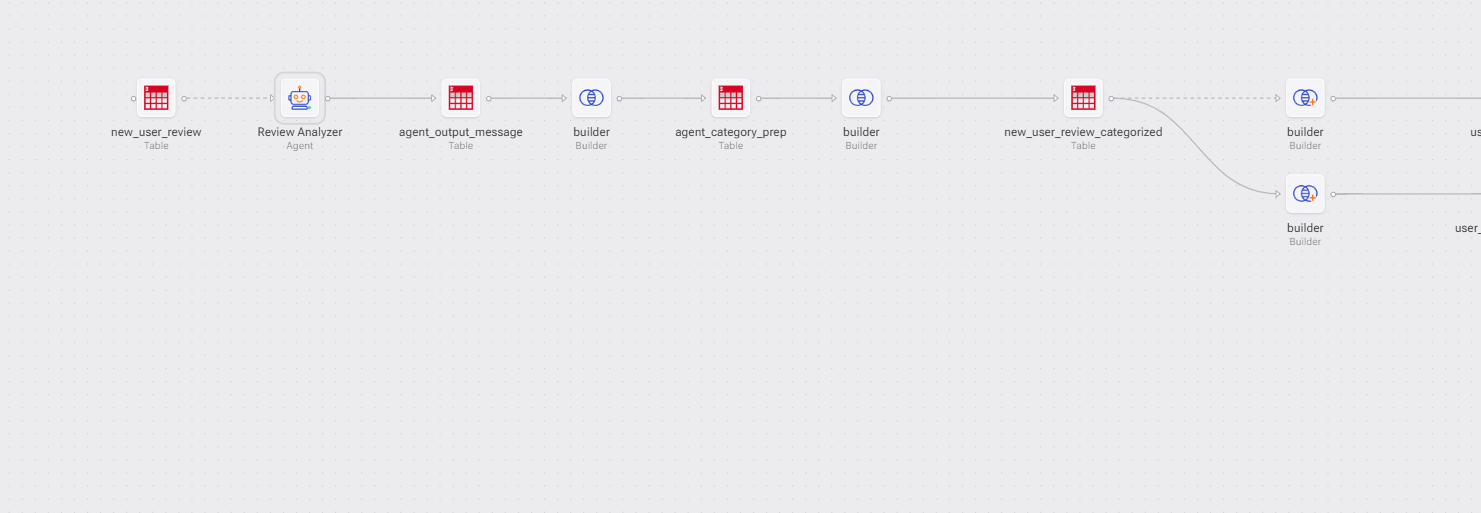
The **Flow Agent** is an AI agent designed to operate **inside task and workflow contexts**, rather than direct user conversations. In this scenario the agent acts as a **Task-based Agent**, executed as part of an automated or analytical flow.
## How to Access the Flow Agent
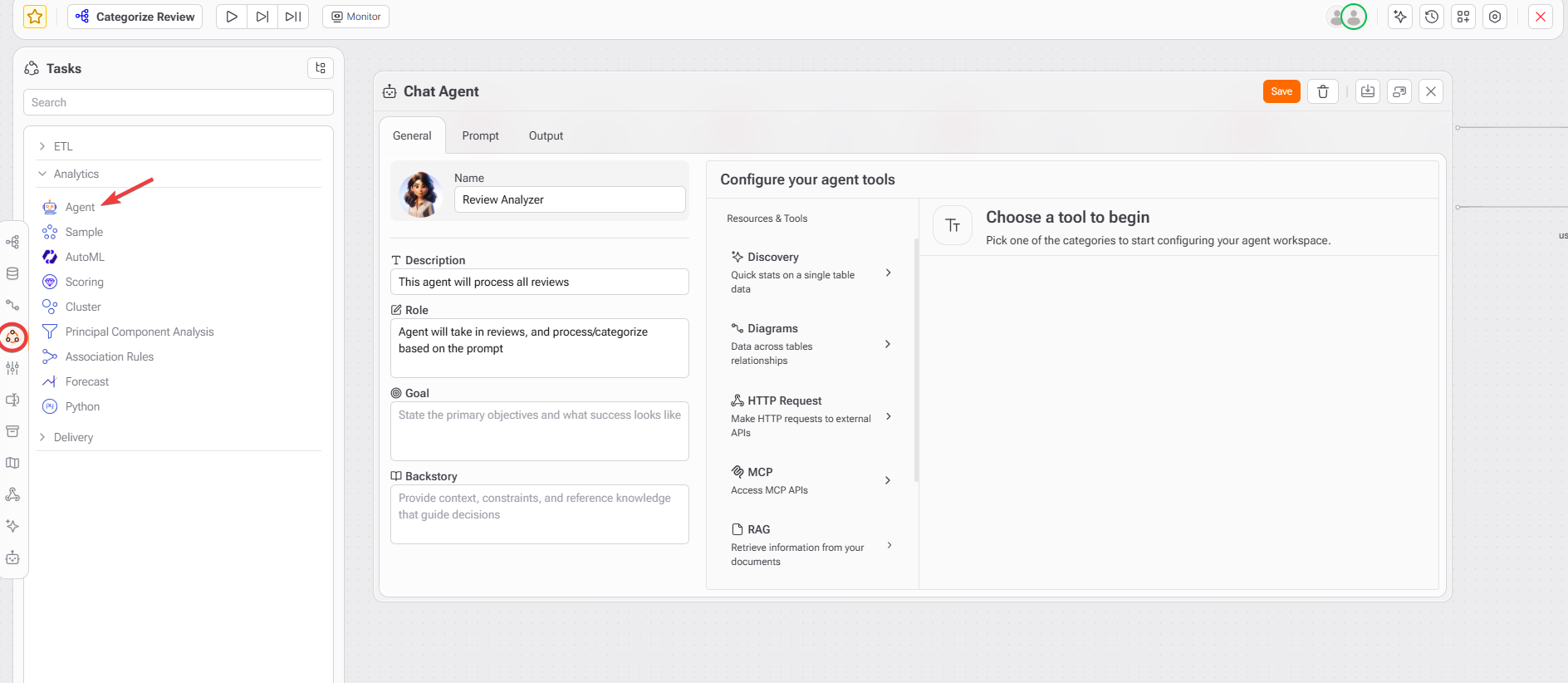
The Flow Agent is accessed through the **Tasks** panel in the left sidebar.
1. Open the left navigation menu
2. Go to **Tasks**
3. Select a task category (e.g. Analytics)
4. Click on the agent after selecting a table or access it by right-clicking on a table and searching for Agent.
A Flow Agent is used when you need AI to:
* Process data as part of a workflow
* Analyze, classify, or transform inputs
* Operate without direct end-user interaction
* Produce structured outputs for downstream steps
Unlike Chat Agents, Flow Agents are typically:
* Triggered by tasks
* Driven by prompts and inputs
* Integrated into pipelines
## How to configure your Flow Agent
The **General** tab shown in this panel uses the **same configuration model** as a Chat Agent:
* Name
* Description
* Role
* Goal
* Backstory
* Tools
* RAG access
Since these concepts are already covered in the[ **Chat Agent documentation**](https://docs.gaiodataos.com/~/revisions/S2YQM2SJIf46cxt3Uy9R/tools/agents), they are **not redefined here**.
### Tools and RAG in Flow Agents
Flow Agents can access:
* Tools (Discovery, Diagrams, HTTP Request, MCP, RAG)
* Knowledge bases (RAGs)
* Schemas and diagrams
Access control follows the same rules:
* Only explicitly enabled tools can be used
* Only attached RAGs can be consulted
This ensures predictable and secure execution inside workflows.
#### Key Difference from Chat Agents
| Aspect | Chat Agent | Flow Agent |
| ----------- | ---------------- | ------------------------- |
| Interaction | Conversational | Task / pipeline-based |
| Trigger | User message | Task Execution |
| Output | Natural language | Structured or operational |
| Usage | Front-facing | Backend/Analytical |
### Prompt Configuration
The **Prompt** tab defines **how the Flow Agent receives instructions and input data** during task execution.This is the core area where you specify **what the agent should do with incoming data** and **how it should reason over it**.
In a Flow Agent, the prompt is not written for direct user interaction, but for **deterministic execution inside a workflow**.
#### Purpose of the Prompt Tab
Use the Prompt tab to:
* Define the agent’s execution instructions
* Describe the expected input structure
* Control how data is injected into the prompt
* Ensure consistent and repeatable behavior
#### Prompt Tab Sections
The Prompt tab is composed of four main elements:
1. System Prompt
1. Optional global instructions applied before any execution.
2. Acts as a **system-level context**
3. Useful for high-level constraints or global behavior
4. Optional in most Flow Agent use cases
5. Typical use cases:
1. Enforcing strict output rules
2. Applying compliance or formatting constraints
3. Defining global execution policies
2. Loop Table
1. Defines whether the agent should execute once or iterate over a table.
3. Prompt (Instructions)
1. This is the main instruction block for the Flow Agent.
2. Here you describe:
1. The agent’s role for this specific task
2. What it should analyze or transform
3. How it should reason over the input
### Output Configuration
The **Output** tab defines **how and where the Flow Agent stores its execution results**. This configuration turns the agent’s response into a **structured artifact** that can be consumed by downstream tasks, analytics, or storage layers.
### Purpose of the Output Tab
Use the Output tab to:
* Persist agent results in a table
* Enforce a strict output schema
* Enable deterministic, machine-readable outputs
* Integrate AI results into pipelines and analytics
#### Output Destination
1. Save agent result at
1. Choose where the agent output will be stored on a table or a parameter.
2. Table name
1. Define the table where results will be written.
3. Select how the agent output will be stored as a text or JSON.
4. Insert mode: append records to table (optional)
5. Define output schema format
```json
{
"type": "object",
"properties": {
"name": { "type": "string" },
"email": { "type": "string" },
"score": { "type": "integer" },
"description": { "type": "string" },
"date": { "type": "string" },
"category_1": { "type": "string" },
"category_1_score": { "type": "number" }
}
}
```
This schema ensures that:
* Every output follows the same structure
* Data types are enforced
* AI responses are compatible with analytics and storage
{% hint style="info" %}
Click **Generate** to auto-create a schema based on context.
{% endhint %}
## When to Use a Flow Agent
Use a Flow Agent when:
* AI is part of a data or automation pipeline
* Outputs must be deterministic or structured
* The agent supports downstream tasks
* No direct chat interface is required
## Best Practices for Flow Agent Outputs
* Always define an output schema for production workflows
* Prefer JSON for complex AI results
* Align output fields with downstream consumers
* Avoid free-text outputs in automated pipelines
* Version schemas when making structural changes